
Integration management
To use the system integration sending service, you need to issue a unified key (통합 Key).
The unified key is a single authentication credential that lets you use every message product and service Bizgo offers through one integration.
Unified key issuance limit
You can issue up to 5 unified keys per team space. If you need more than 5, contact the support center.
Issue a unified key
To issue a unified key, go to Console > Team space (팀스페이스) and open the team space you want to issue the key for. Click Integration management (연동관리) in the left menu, then click the Issue key (KEY 발급) button on the page.
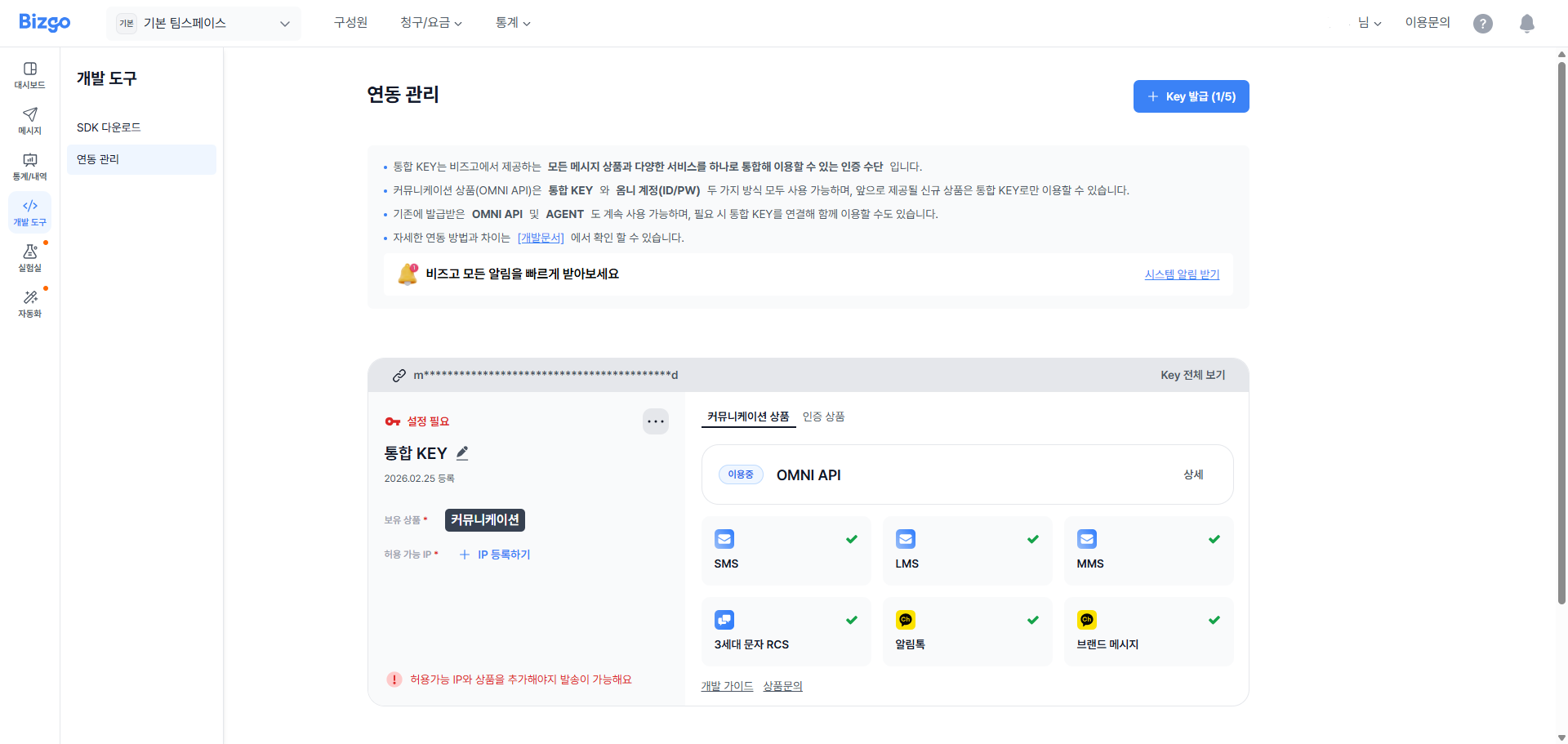
Automatic issuance on first sign-up
When you sign up for the first time, one unified key is issued automatically once business verification is complete, and you will see it with products already added according to the plan you selected.
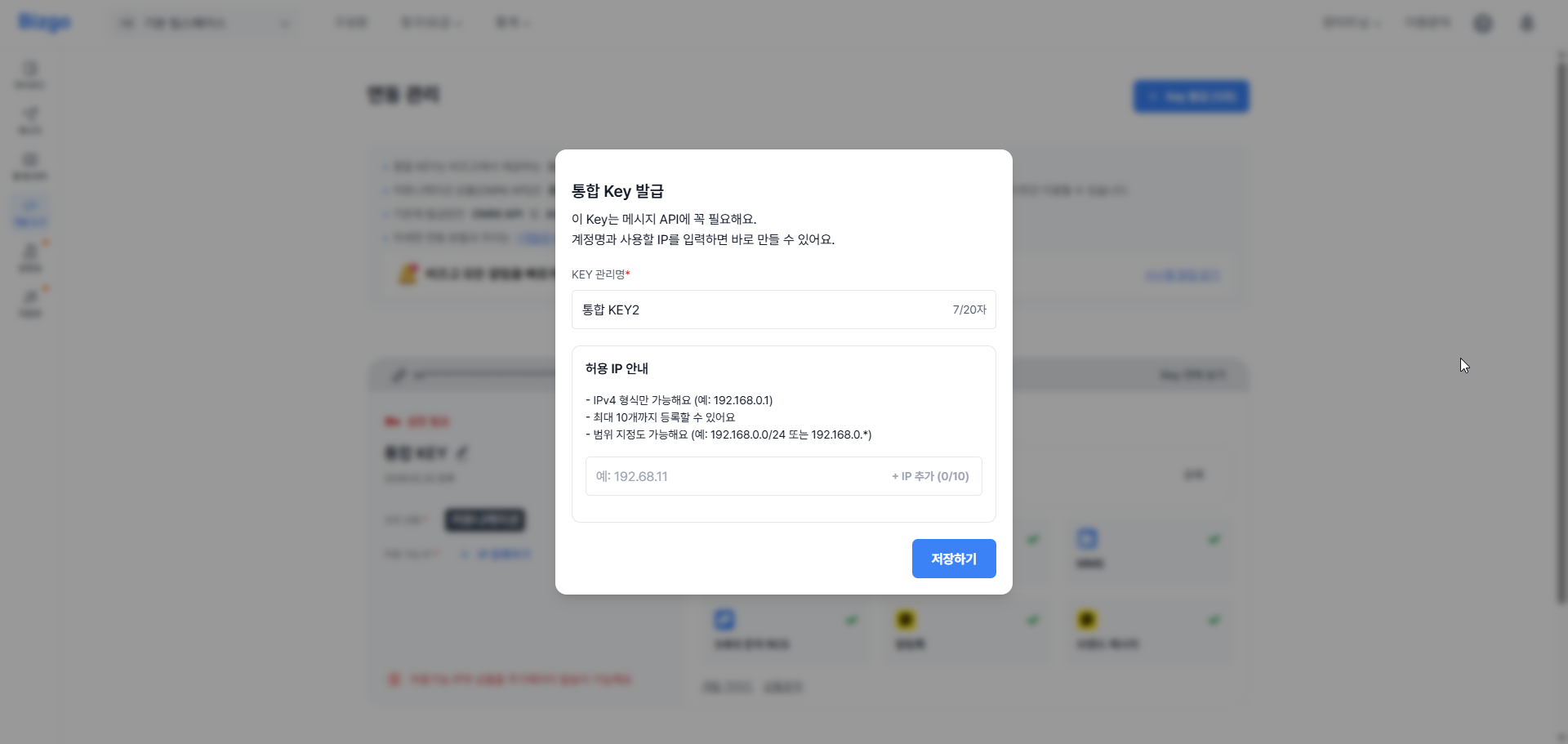
After issuing the unified key, set the allowed IPs (ACL) and connect the products you want to use to activate the key.
Setting a key management name makes it easier to keep track of things when you manage several keys.
Check product API/AGENT details
Once you have issued the unified key and connected the products you want to use, you can review the specification and details of the API or AGENT.
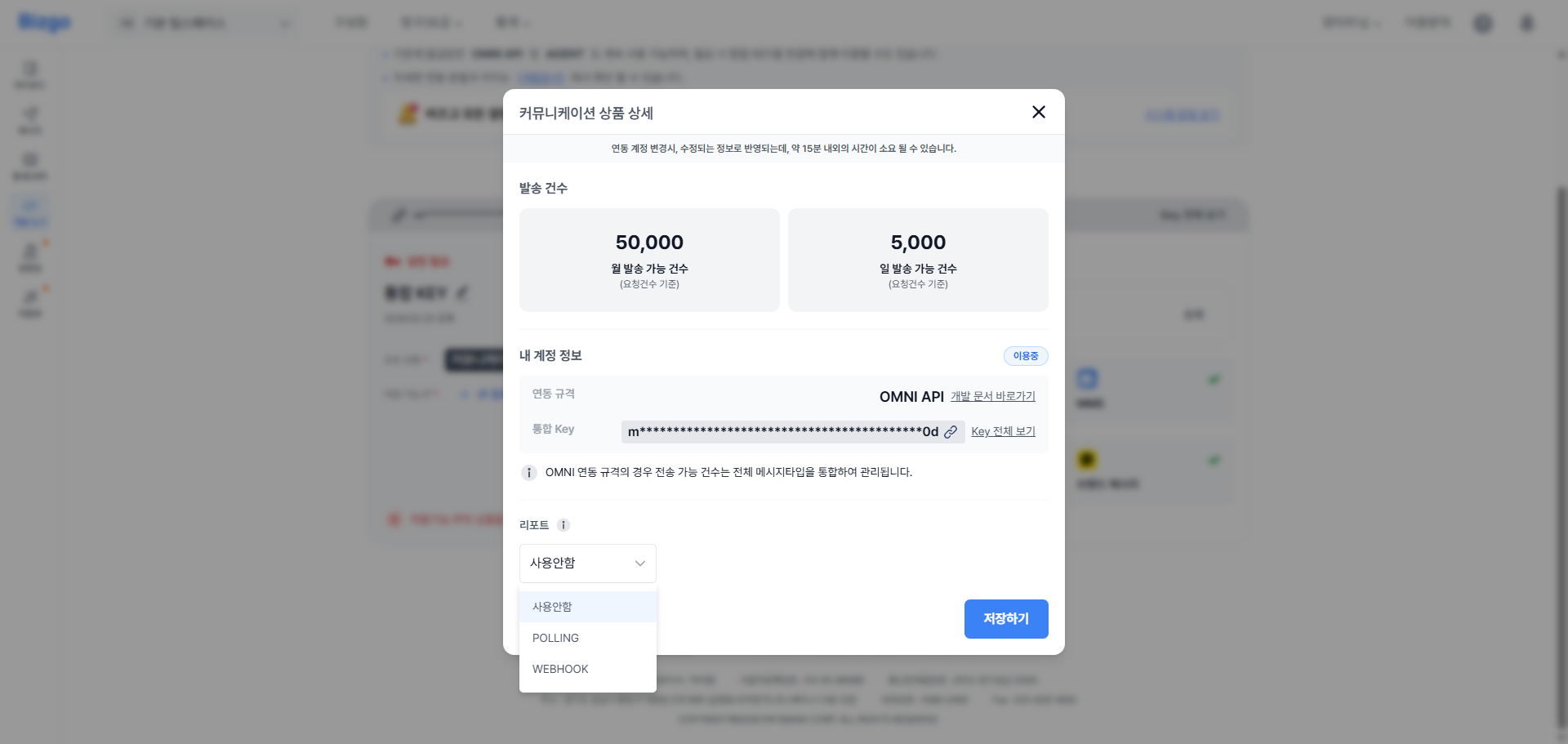
For communication products you can review the specification, development documents and installation files, the services in use, the report receiving method, and the monthly/daily send limits — and you can change the report receiving method.
What is report receiving?
This option controls whether your system receives reports on the final delivery result of messages sent with communication products, and how those reports are delivered.
| Method | Description |
|---|---|
| Not used (사용 안 함) | Your system does not receive the final delivery result. |
| POLLING | Reports are returned each time your system requests them. |
| WEBHOOK | Each time a final delivery result is created, the report is sent to your WEBHOOK URL. |
How long a report receiving change takes to apply
You can edit the report receiving method. After a change, it takes up to about 15 minutes for the updated setting to take effect.
Base URI
| Environment | Base URI |
|---|---|
| Production | https://mars.ibapi.kr/api/comm |
| Sandbox | https://sandbox-mars.ibapi.kr/api/comm |
Authentication header
Include the headers below in every API request.
Authorization: ApiKey {발급받은 API 키}
Content-Type: application/json
Request example
curl -X POST https://mars.ibapi.kr/api/comm/v1/send \ -H "Authorization: ApiKey YOUR_API_KEY" \ -H "Content-Type: application/json" \ -d '{ ... }'Notification center
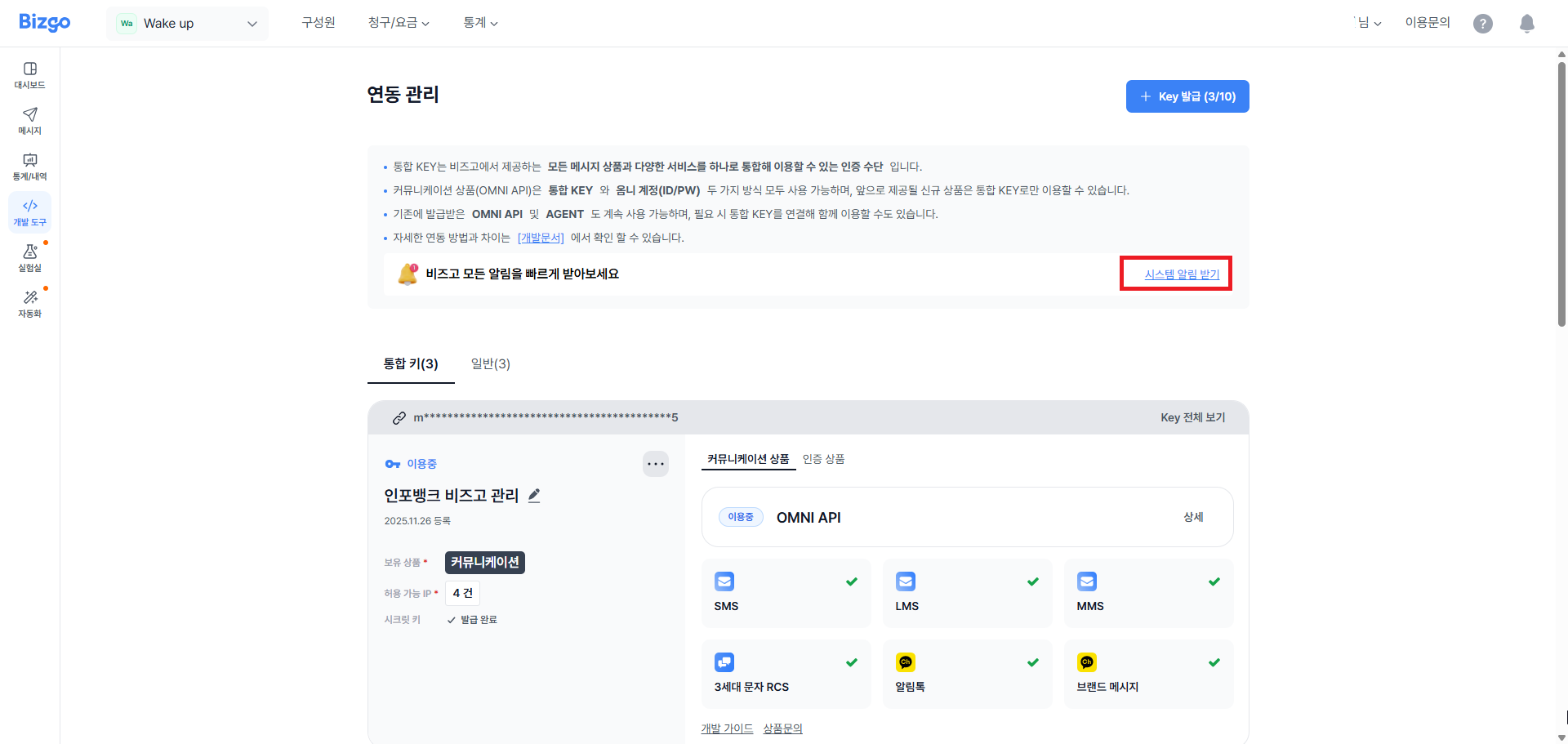
You can be alerted the moment something goes wrong with a Bizgo service. You subscribe to alerts per unified key issued in Integration management, and you can freely choose the receiving channels and the alert items.
Configure this in Console > Team space > Integration management > Notification center (알림센터).
Alert items
You can select more than one alert item.
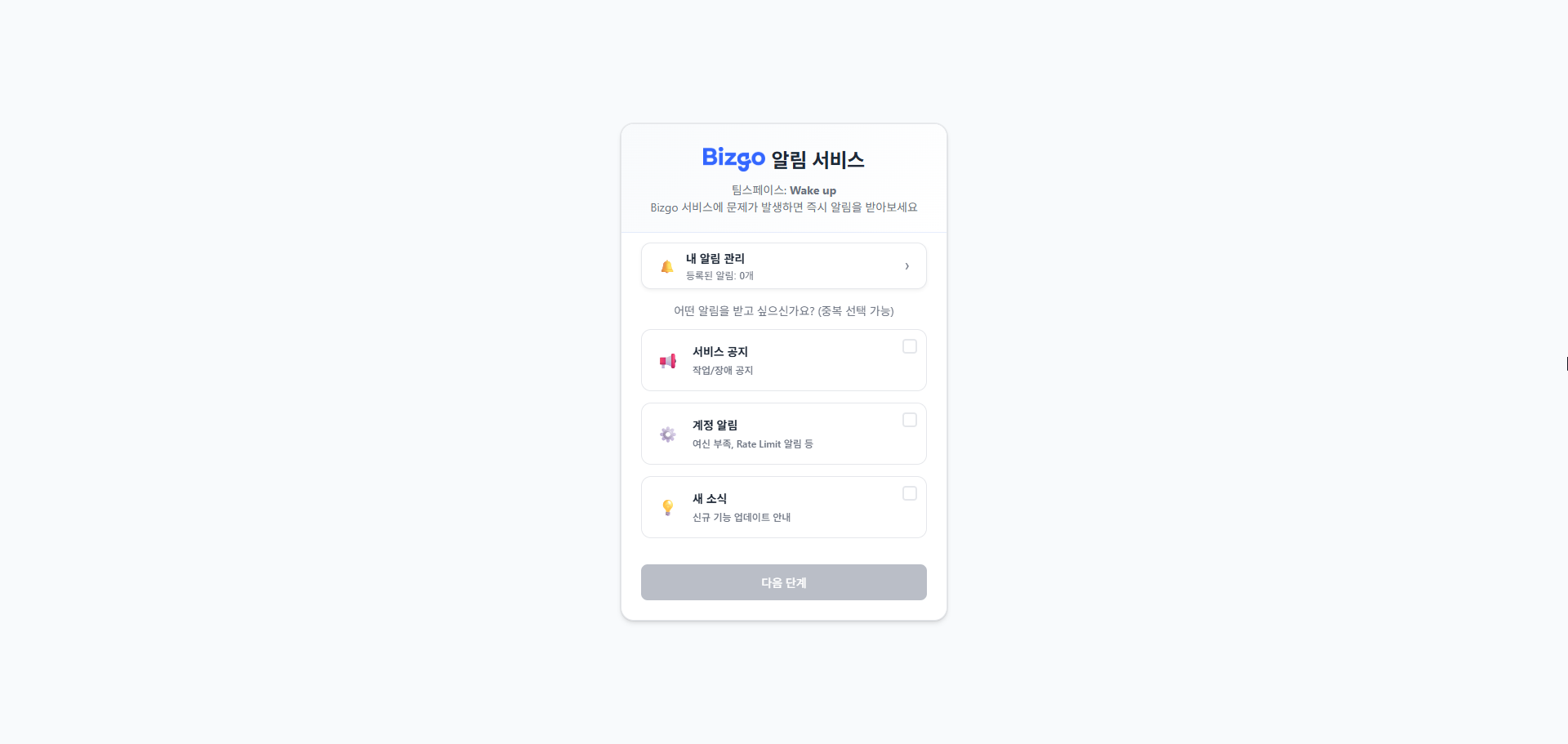
| Item | Description |
|---|---|
| Service notices | Notices for scheduled work and incidents |
| Account alerts | Account-related alerts such as insufficient credit or Rate Limit exceeded |
| What's new | Announcements about new feature updates |
Receiving channels
You can receive alerts on any of the channels below, and you can register several channels at once.
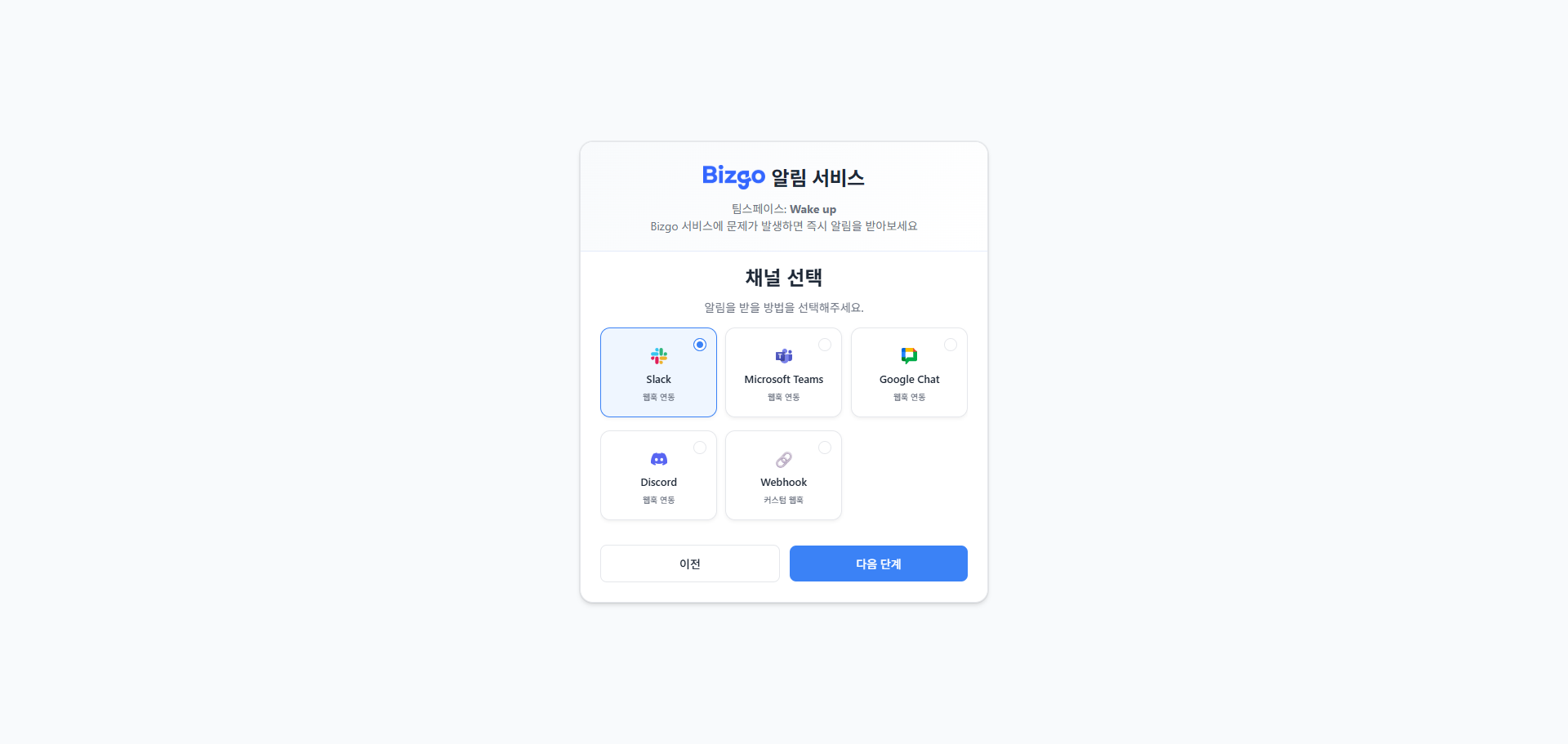
| Channel | Description |
|---|---|
| Slack | Receive in a Slack channel through a Webhook URL |
| Microsoft Teams | Receive in a Teams channel through an Incoming Webhook |
| Google Chat | Receive in a Google Chat space through a Webhook URL |
| Discord | Receive in a Discord channel through a Webhook URL |
| Webhook | Receive an HTTP POST request at a URL you configure yourself |
How alerts are registered
Alerts are registered per unified key issued in Integration management. You can configure the receiving channels and alert items independently for each key.
Next steps
- Understand the send flow → Understand the send request structure
- Choose a channel → Channel selection guide