
Upload images for Brand Message
Under Bizgo > Messages > Kakao > Image management, register the images you will use in Brand Message. Registering one issues a URL, and you put that URL straight into your API or Agent send.
Image management is for system sends
A registered image comes back as a URL. Use that URL when sending over the API or an Agent — it is not for web sends. On a web send you upload the image directly on the template screen.
Go to Bizgo > Messages > Kakao > Image management.
1. Start uploading
Click Register image.
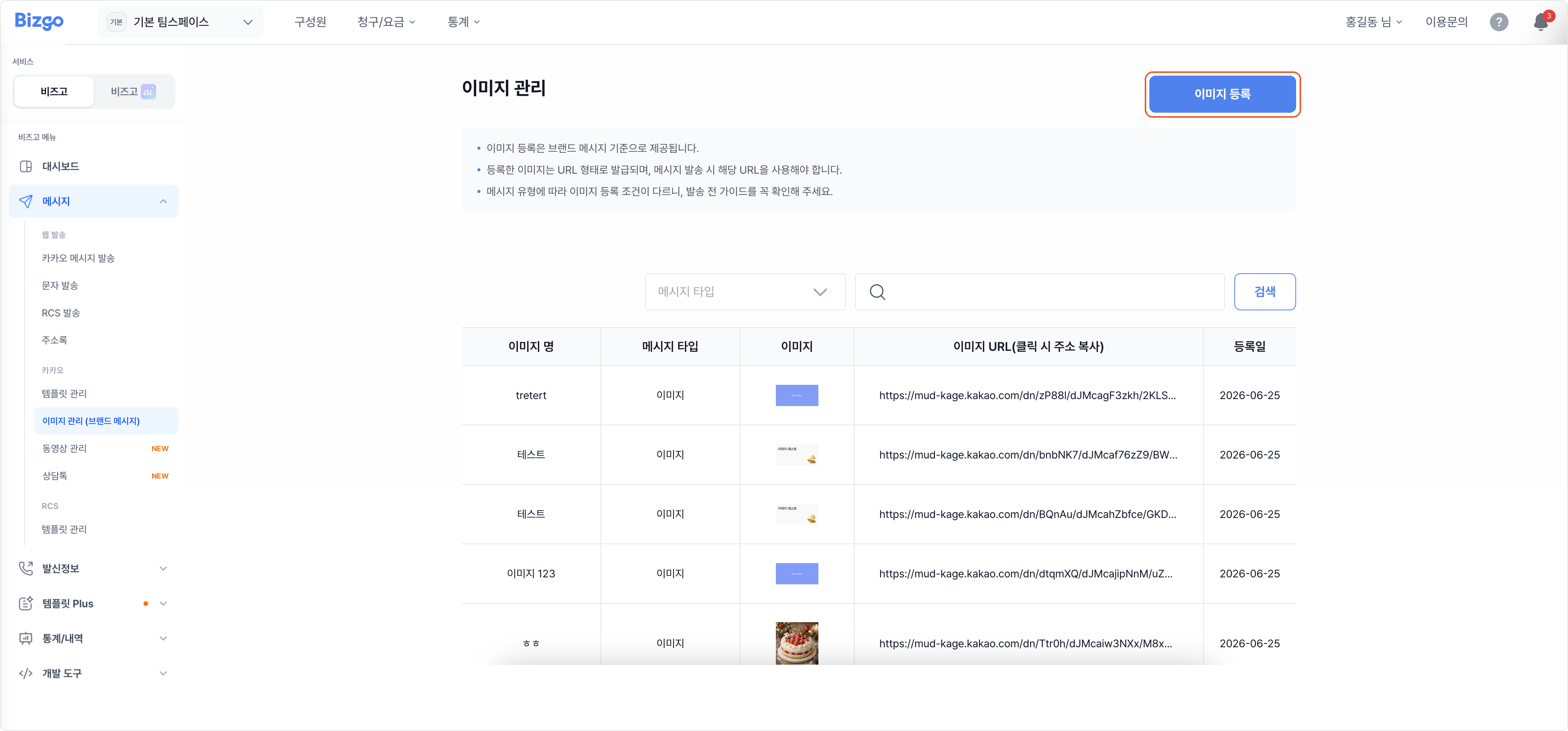
2. Choose the message type
Pick the tab for the message type you are sending. Wide and carousel ask you to pick a sub-type under Image category as well.
| Message type | Image category |
|---|---|
| Image | — |
| Wide | Wide image / Wide list first / Wide list |
| Carousel | Carousel feed / Carousel commerce |
| Commerce | — |
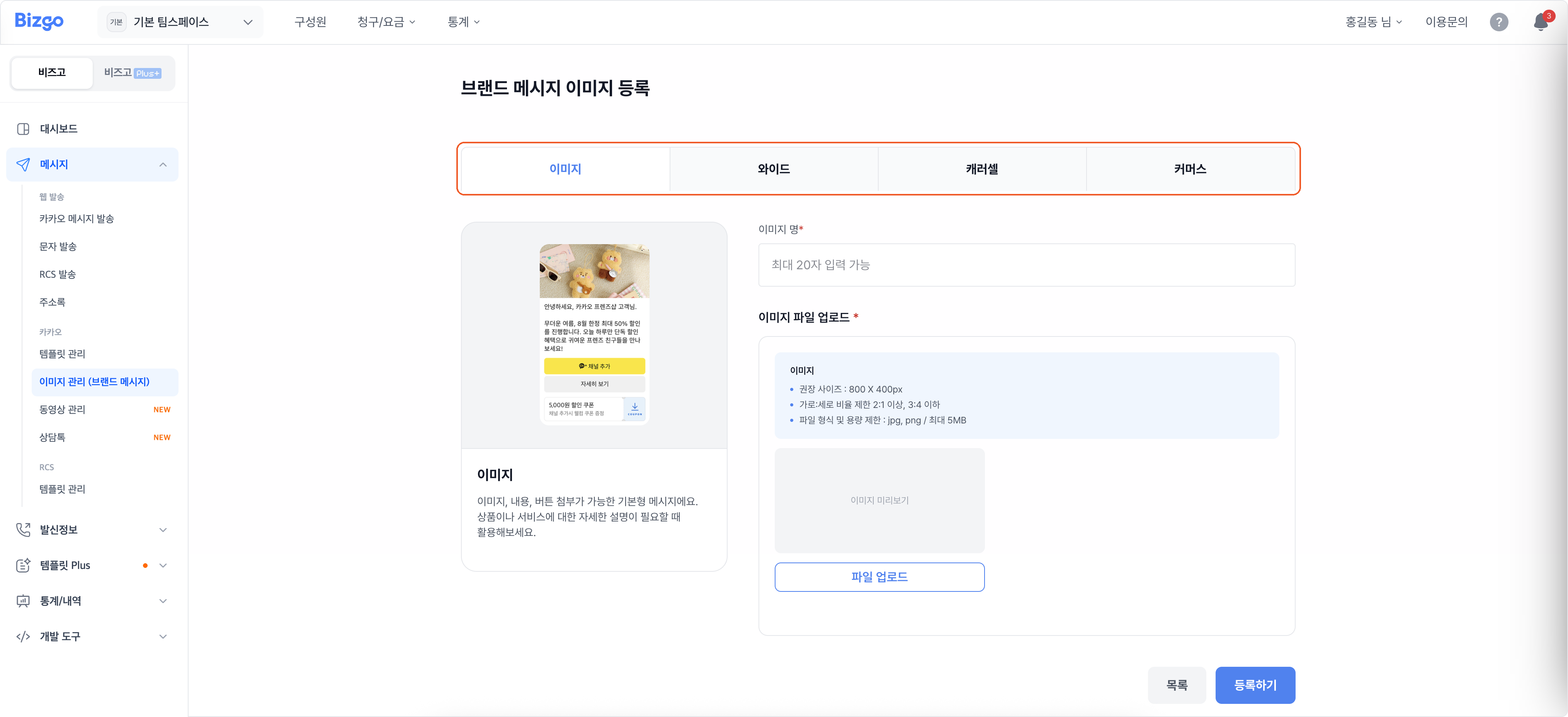
File requirements
The recommended size and ratio differ per type — check the note above the upload area. Files can be JPG or PNG, up to 5MB.
3. Name the image and upload the file
Enter an image name of up to 20 characters and click Upload file to pick the image. For a carousel, use + Add image to upload 2–6 of them.
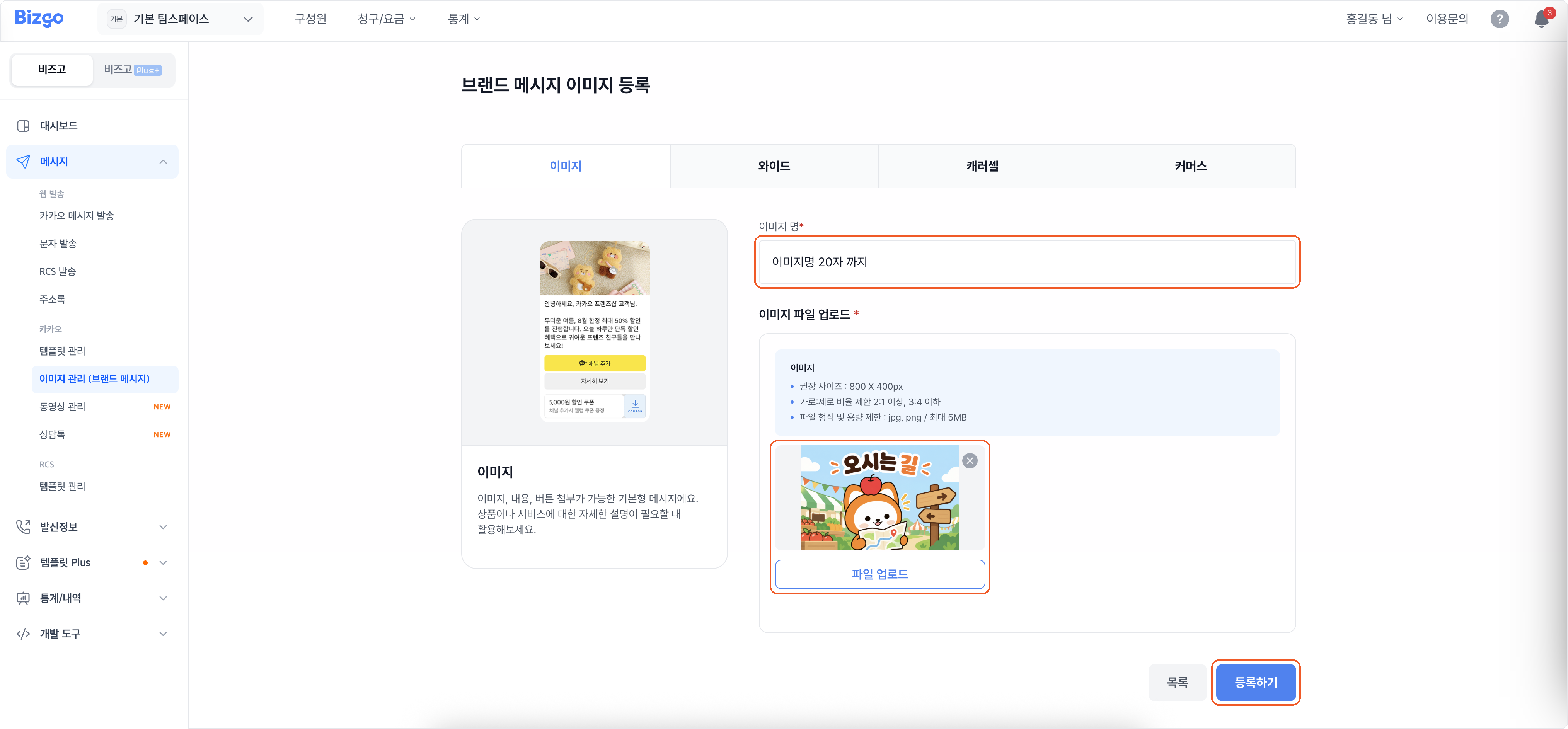
4. Register
Click Register and the image joins the image management list. Clicking the image URL in the list copies the address.
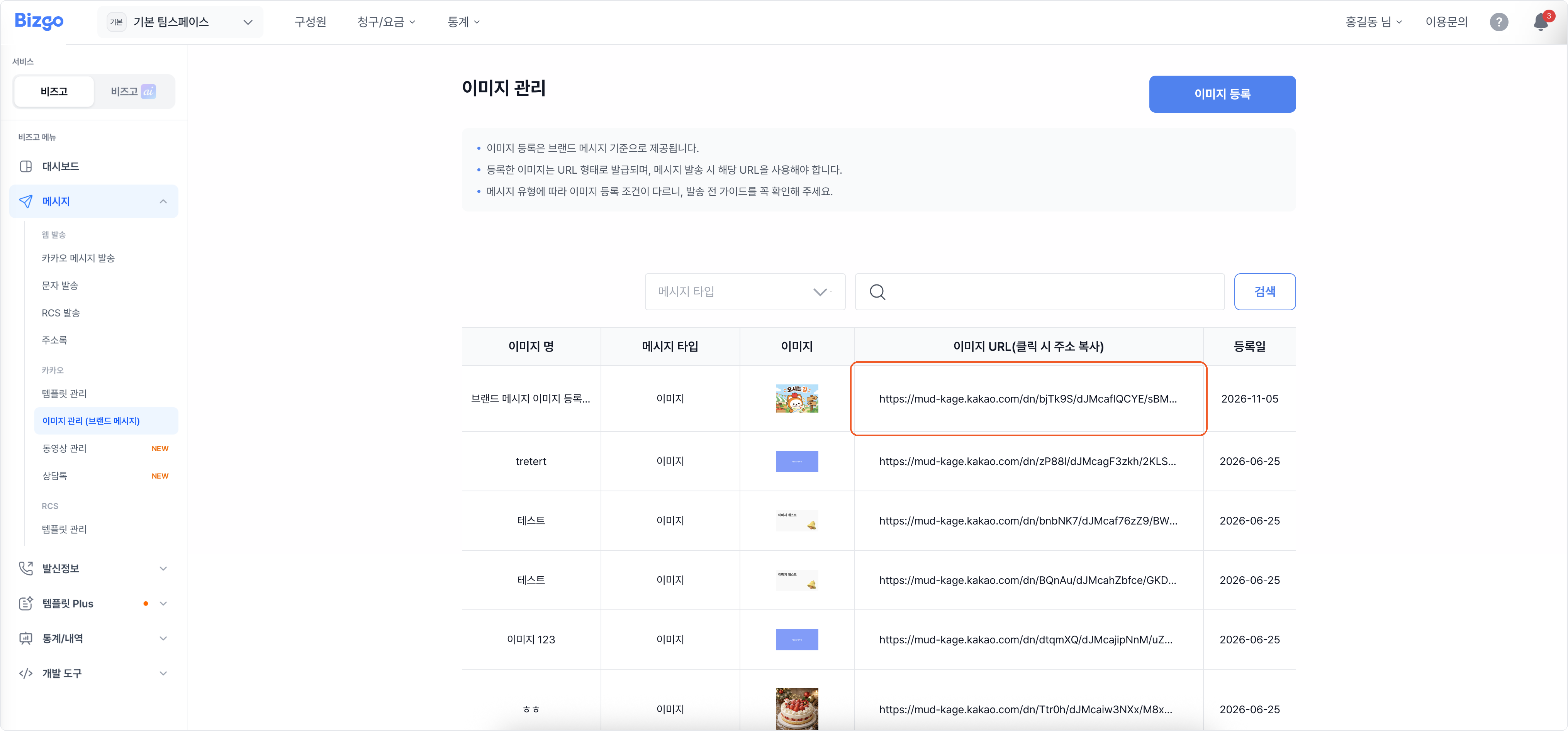
Next
- Videos as well → Upload videos for Brand Message
- Creating a template → Create a Brand Message template
- The API specification → Kakao Brand Message