
Automate store Alimtalk
Send customers an Alimtalk automatically when an order on your Smart Store changes state. Go to Bizgo Plus+ > Automation > Commerce Alimtalk automation.
The Naver-side setup comes first
Before you build a scenario in the console, set the commerce API agency to Bizgo (Infobank) in the Naver Smart Store center. It can only be done on Naver's side and takes time to propagate.
If the console keeps showing «Connect a store», check this setting first.
Connect your store and Kakao channel first
With no store connected, start from Connect store on the «Connect a store» screen. Naver Smart Store is the platform available today. Without a Kakao channel of your own, you can choose Use the Bizgo shared notification channel instead.
Try it first
You can see the automated send flow without being charged.
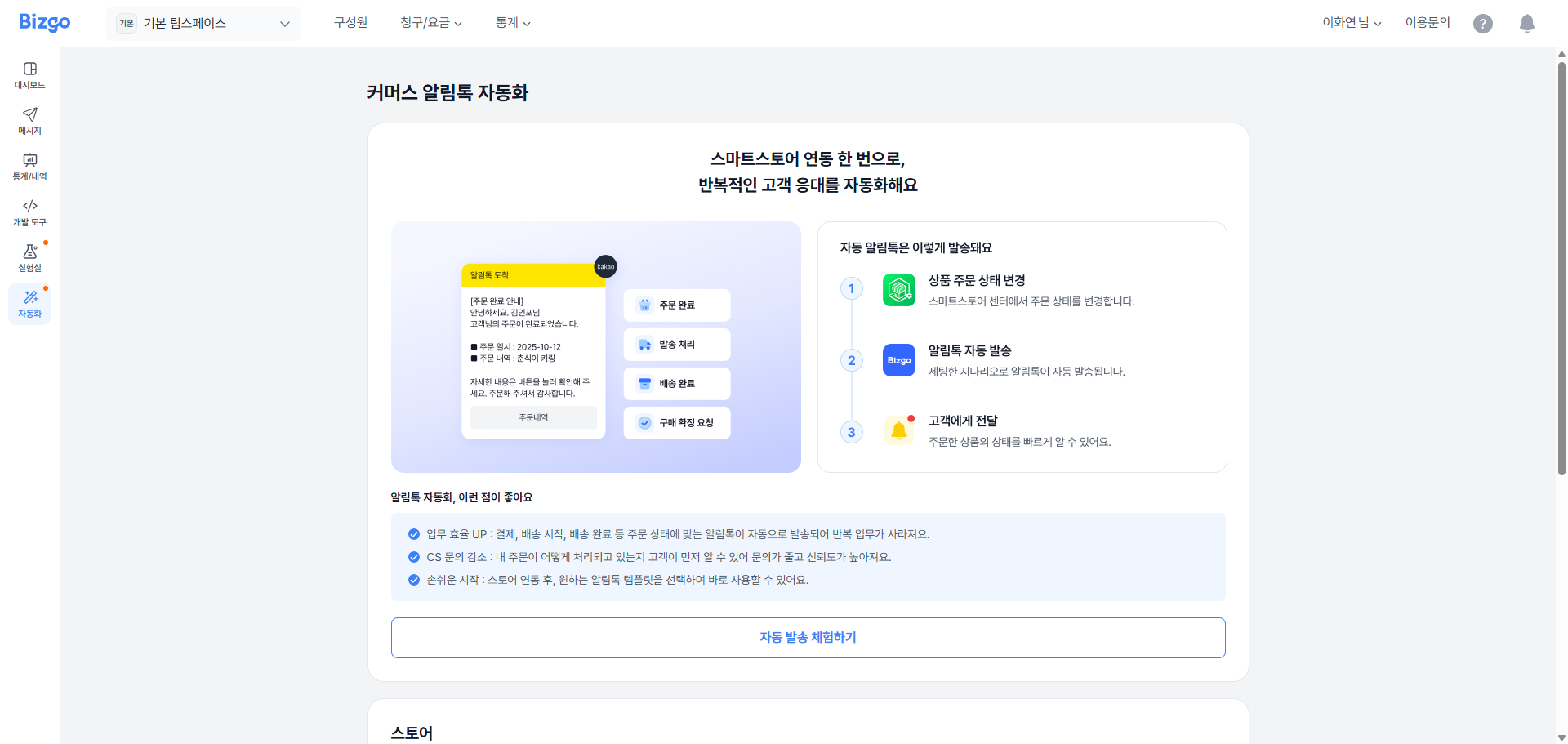
- Go to Bizgo Plus+ > Automation > Commerce Alimtalk automation.
- Click Try automated sending.
- Pick a template to try and see the result.
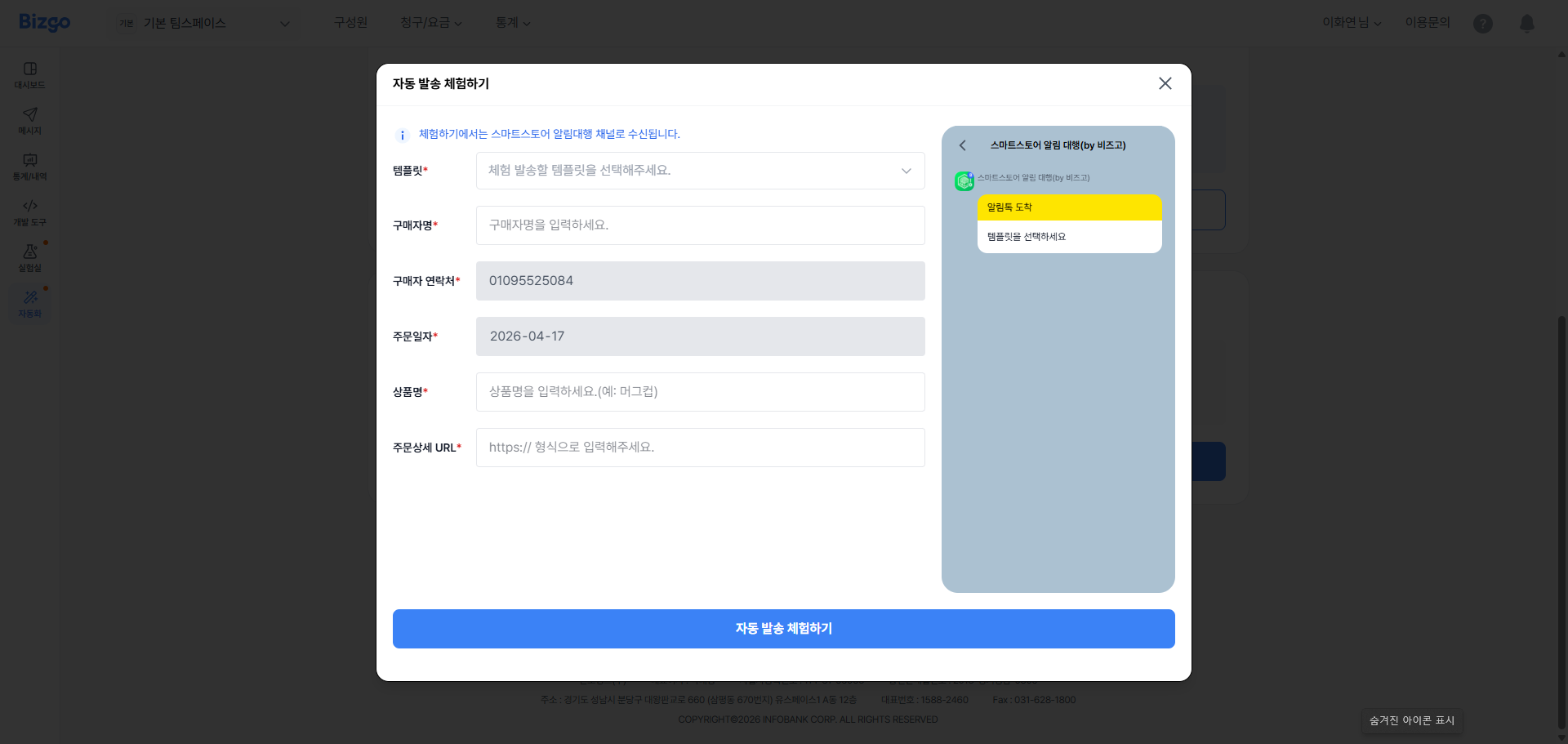
You can try it per template, and it only goes to the mobile number on the signed-in account.
What you can send
| Scenario type | When the Alimtalk goes out |
|---|---|
| Order placed | When the buyer completes the order |
| Shipment started | When the seller enters a tracking number and the status turns «Shipment started» |
| Delivered | When Naver updates the status to «Delivered» based on the tracking number |
| Purchase confirmation request | Three days after the delivered status arrives |
1. Choose a store and start
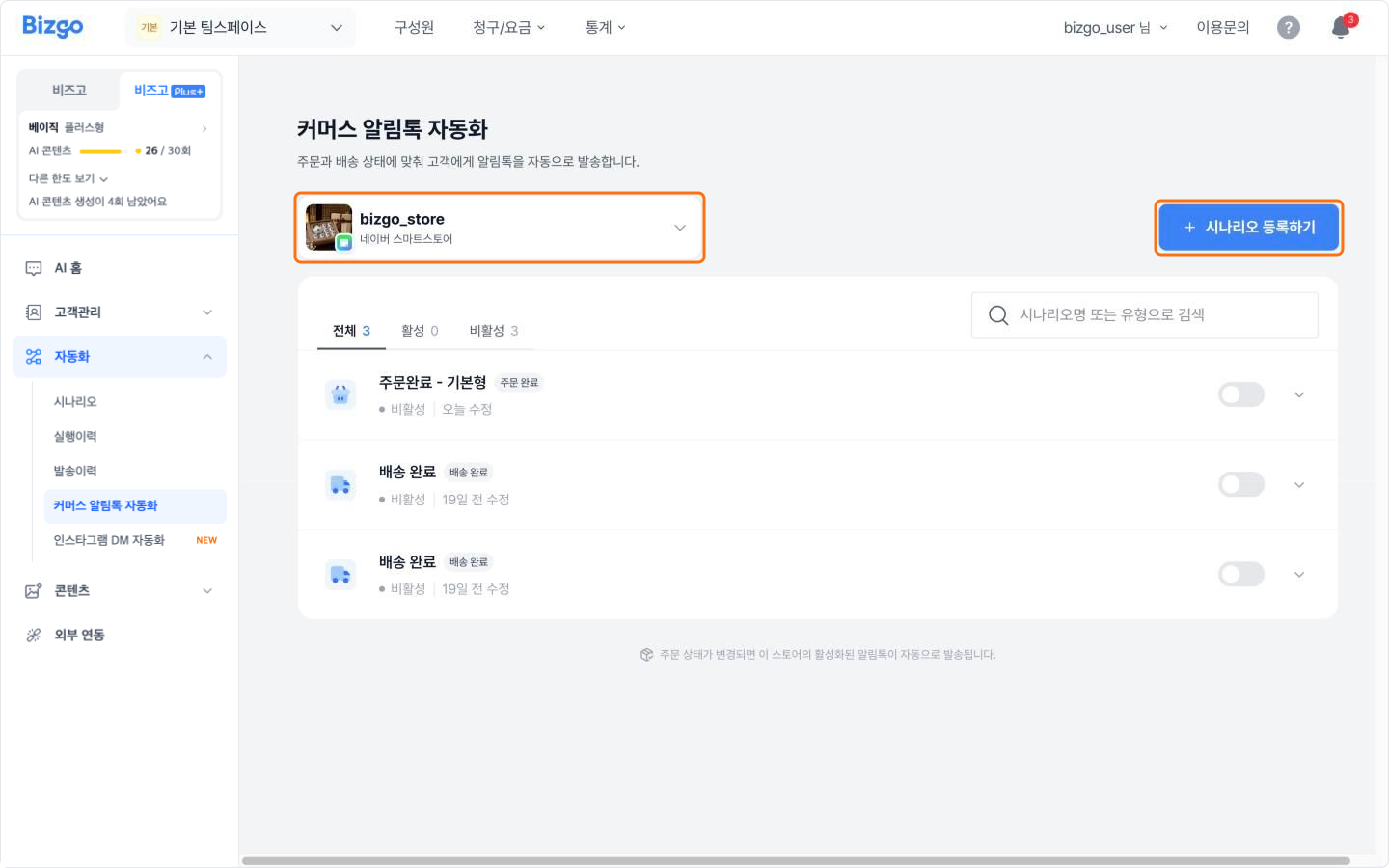
Pick the store at the top of the screen and click Register scenario.
2. Choose the scenario type
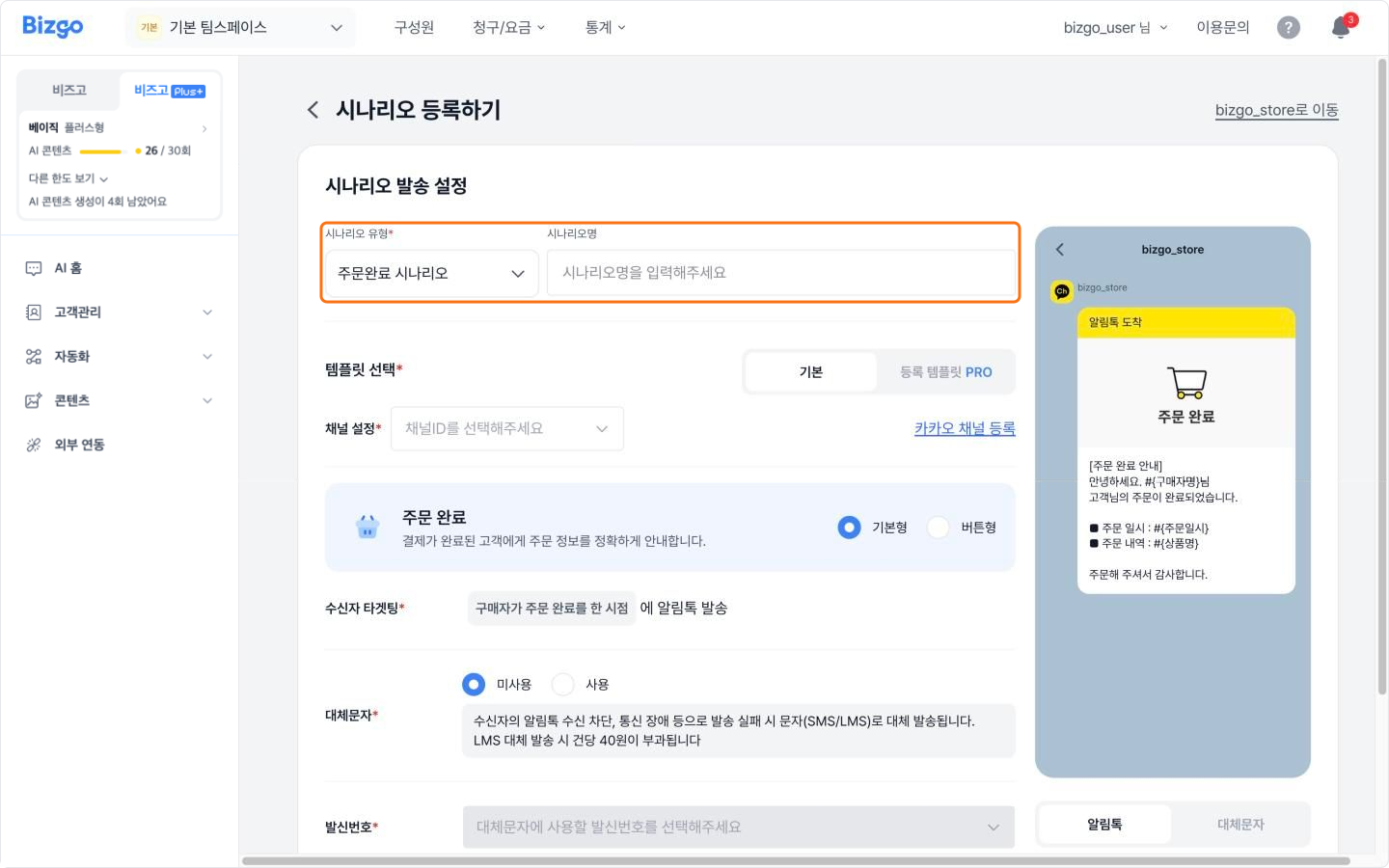
Under «Scenario type», pick the notification and enter a scenario name of up to 150 characters.
3. Choose the template and channel
Under «Select template», pick Default or Registered template. Default offers a basic and a button layout; Registered template uses an Alimtalk template you registered yourself.
Under «Channel settings», pick the Kakao channel to send from. Without a channel of your own, you can send through the «Smart Store notifications (by Bizgo)» channel.
4. Set the timing and the fallback SMS
Confirm the send timing under «Recipient targeting». To fall back to SMS when the Alimtalk fails, switch «Fallback SMS» to Use and enter the sender number, the title, and the body.
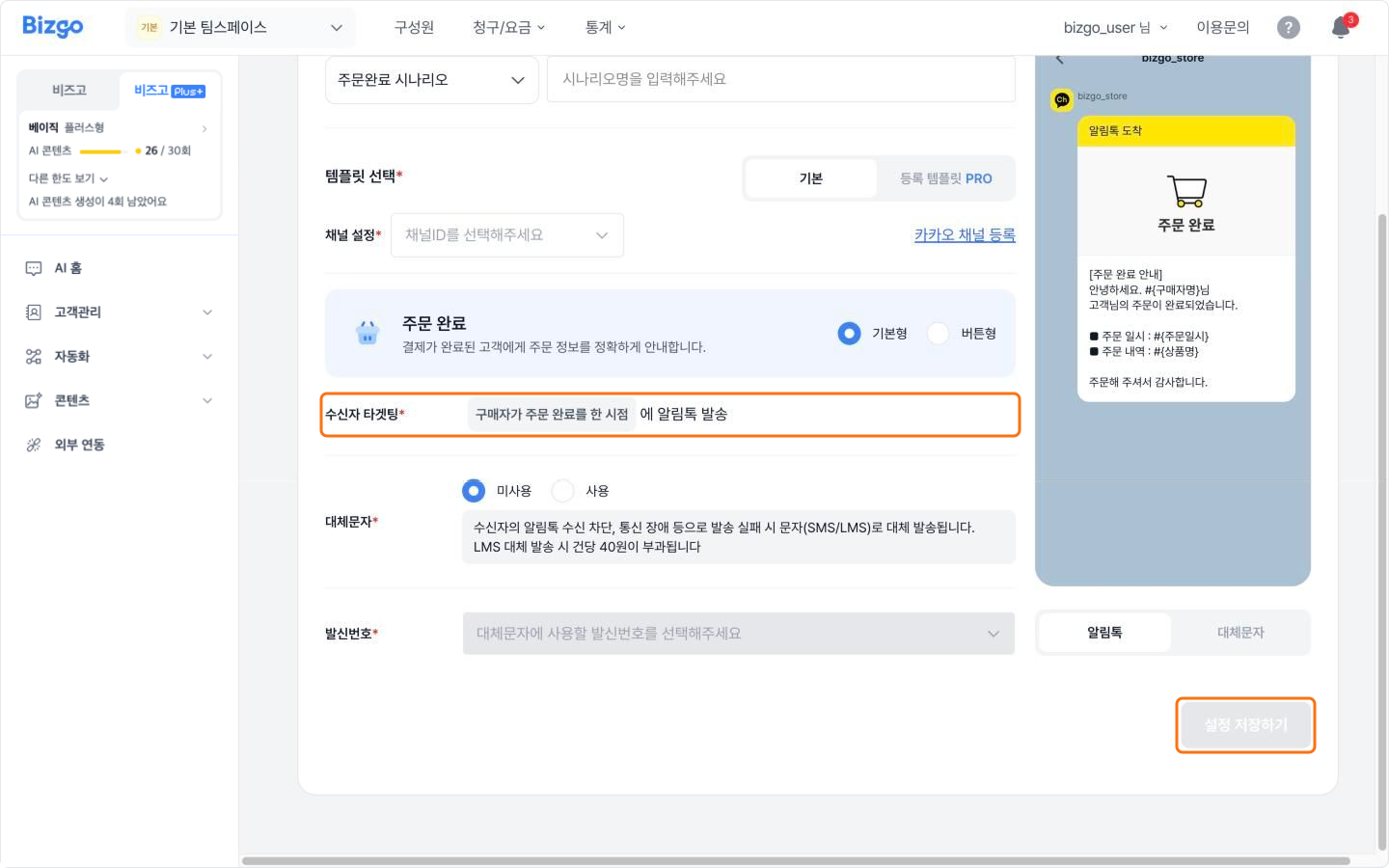
| Fallback field | How to fill it in |
|---|---|
| Sender number | Required. Choose one of your registered sender numbers |
| Body | Up to 2,000 bytes. Copy the content above pulls the Alimtalk body across |
| Free opt-out | Enter a toll-free opt-out number if the message needs one |
The fallback SMS is charged
A fallback sent as LMS costs KRW 40 per message. Brand Message can only go out between 08:00 and 20:50 (KST).
5. Save it and switch it on
Click Save settings and the scenario joins the list as «Inactive». Flip the switch and click Activate in the confirmation dialog to start automated sending.
Only one scenario of each type per store
Activating a scenario of a type already in use stops the previous one.
Checking that it really sends
Expand the scenario row in the list and click Test send. Place an order on your own store, change its state, and see whether the Alimtalk arrives. Wait 5–10 minutes after payment before cancelling the order.
Managing scenarios in the list
Choosing a store at the top shows that store's scenarios. The tabs filter by all, active, and inactive, and you can search by scenario name or type.
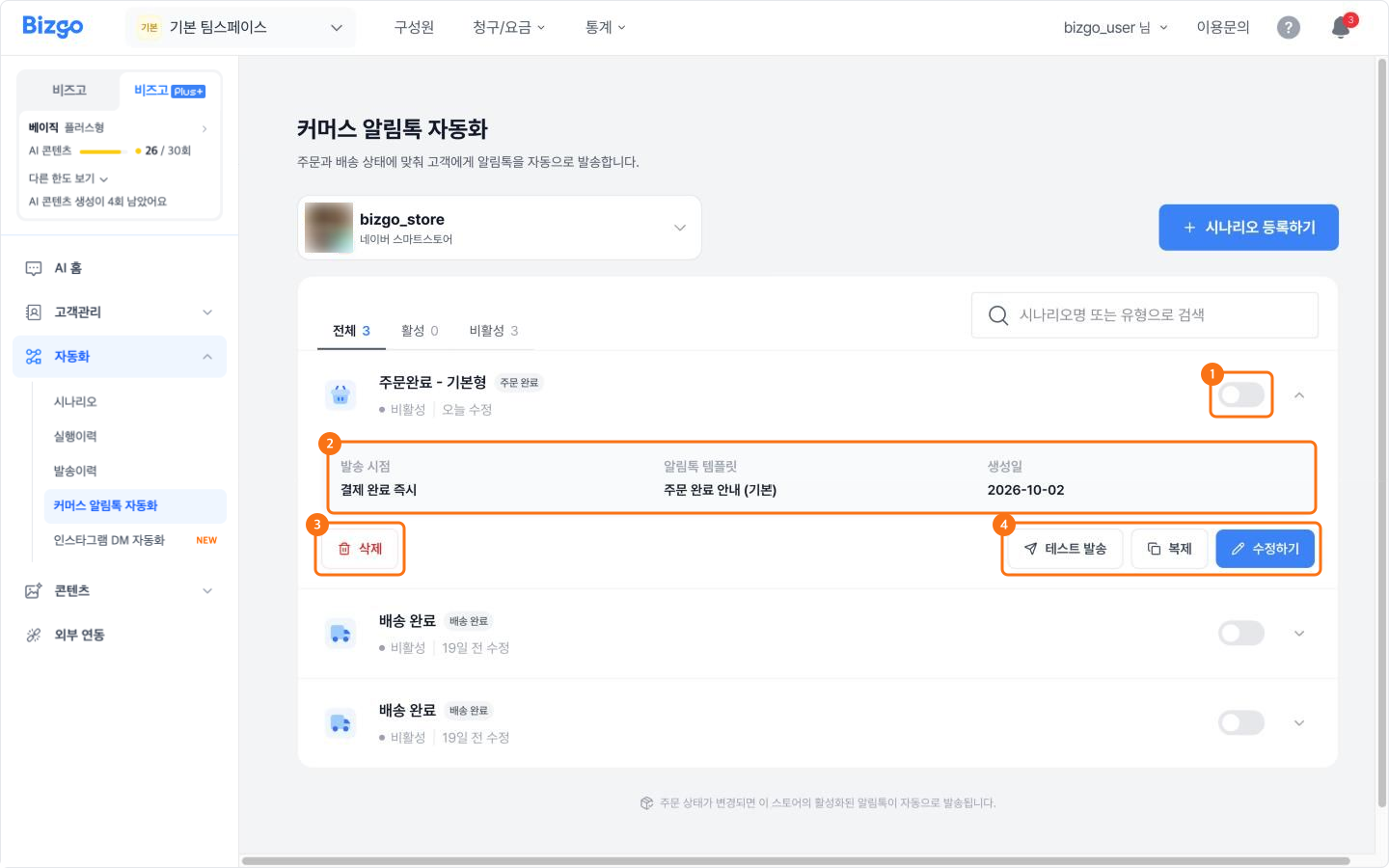
| Item | Detail |
|---|---|
| On/off switch | Switching on opens a confirmation; Activate starts automated sending immediately. Switching off stops it at once |
| Send timing | When the Alimtalk goes out |
| Alimtalk template | The template this scenario sends |
| Delete | Only an inactive scenario can be deleted |
| Test send · Duplicate · Edit | Check that the Alimtalk arrives, copy the setup into a new scenario, or change the settings |
A deleted scenario cannot be recovered
An active scenario cannot be deleted. Deactivate it first, then click Delete.
Next
- Checking results → Check automated send results
- Instagram auto-DM → Auto-reply to Instagram DMs
- Sending from a no-code tool → Make · Zapier integration (no-code)