
Create a Brand Message template
Under Bizgo > Messages > Kakao > Template management, register the template you will send as a Brand Message. Unlike Alimtalk, it can be sent straight away without review.
Register a Kakao channel first
A template is built against a registered Kakao channel (its channel ID). → Register a Kakao channel
Reaching customers who are not channel friends needs send target expansion
To send Brand Message to marketing-consented customers who are not channel friends, apply for send target expansion (types M and N) on each channel. → Brand Message send types
1. Start registering
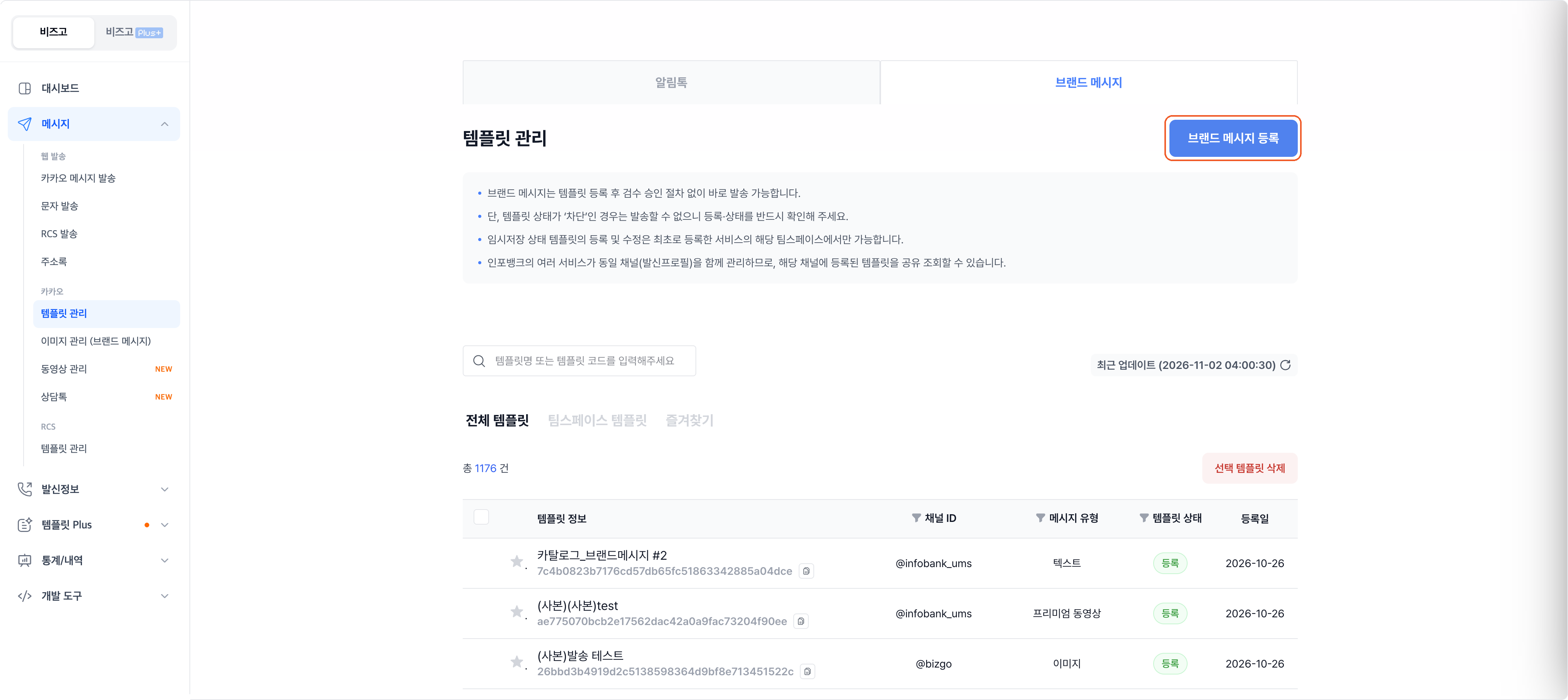
On the Brand Message tab, click Register Brand Message.
2. Choose the template type
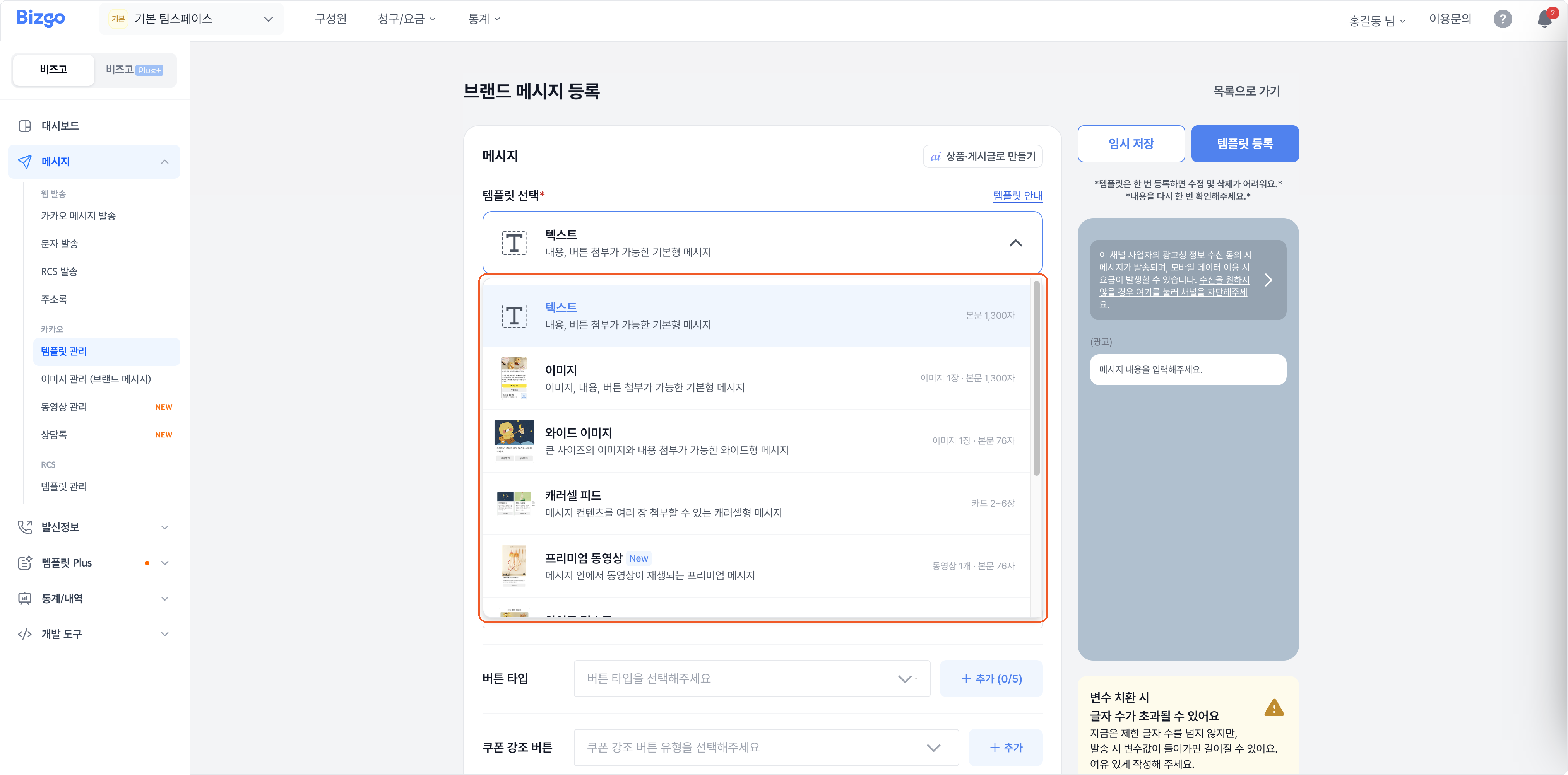
Pick the message shape under Select template. The fields you fill in change with the type.
| Type | What it holds |
|---|---|
| Text | 1,300-character body, buttons |
| Image | One image, 1,300-character body |
| Wide image | One large image, 76-character body |
| Carousel feed | 2–6 cards |
| Premium video | One video, 76-character body |
| Wide list | 3–5 items |
| Carousel commerce | 1–6 product cards |
| Commerce | One product |
| Catalog | 3–7 items |
The specification for sending through the API
Field names and limits per type — button counts, character counts, and so on — are in the API reference. → Kakao Brand Message
3. Write the message
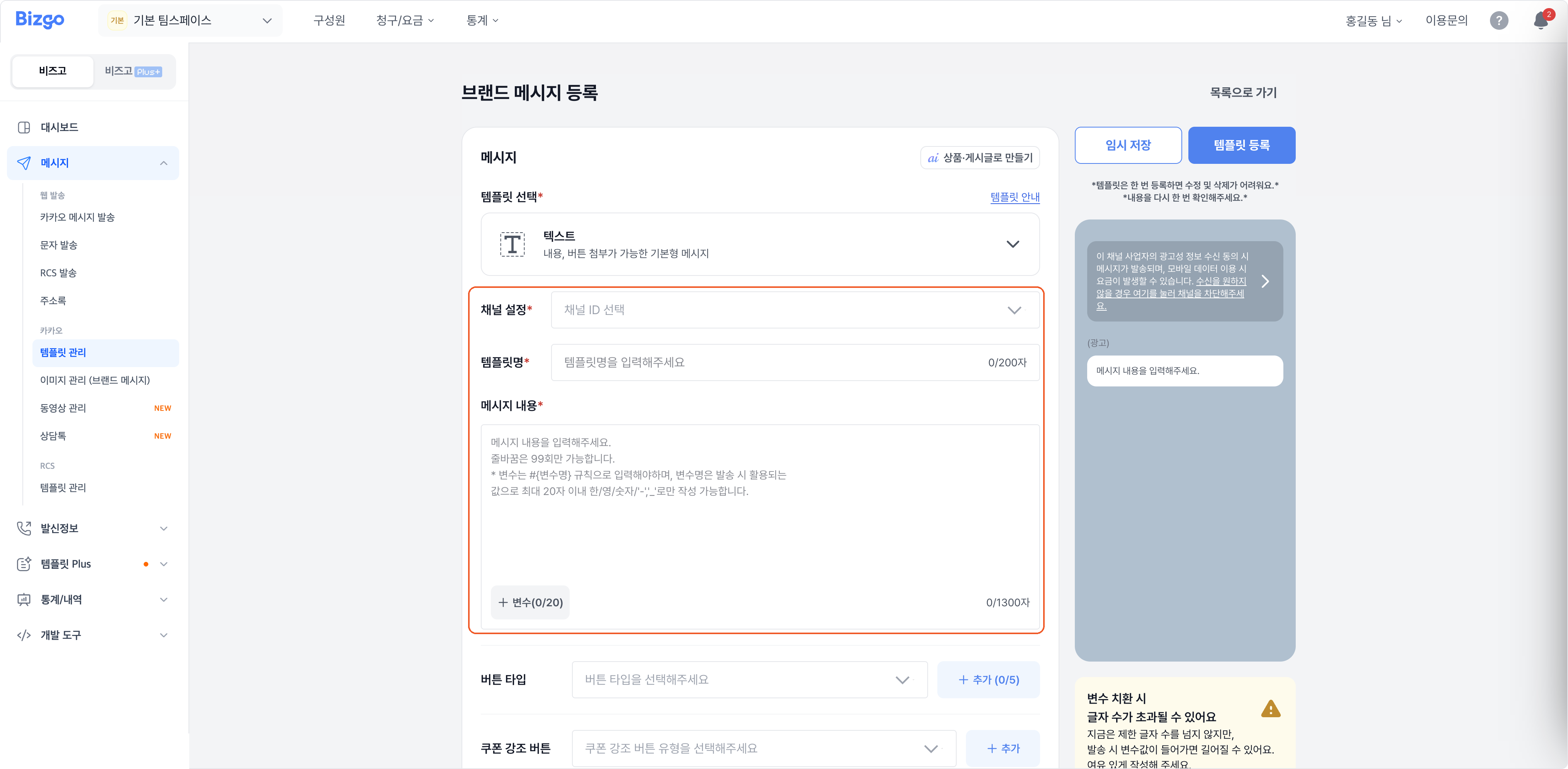
Select the channel ID, then enter the template name (up to 200 characters) and the message body. Anything that differs per recipient goes in as #{variableName} (up to 20). Add buttons (up to 5) or a coupon emphasis button if you need them, and check the preview on the right.
4. Register the template
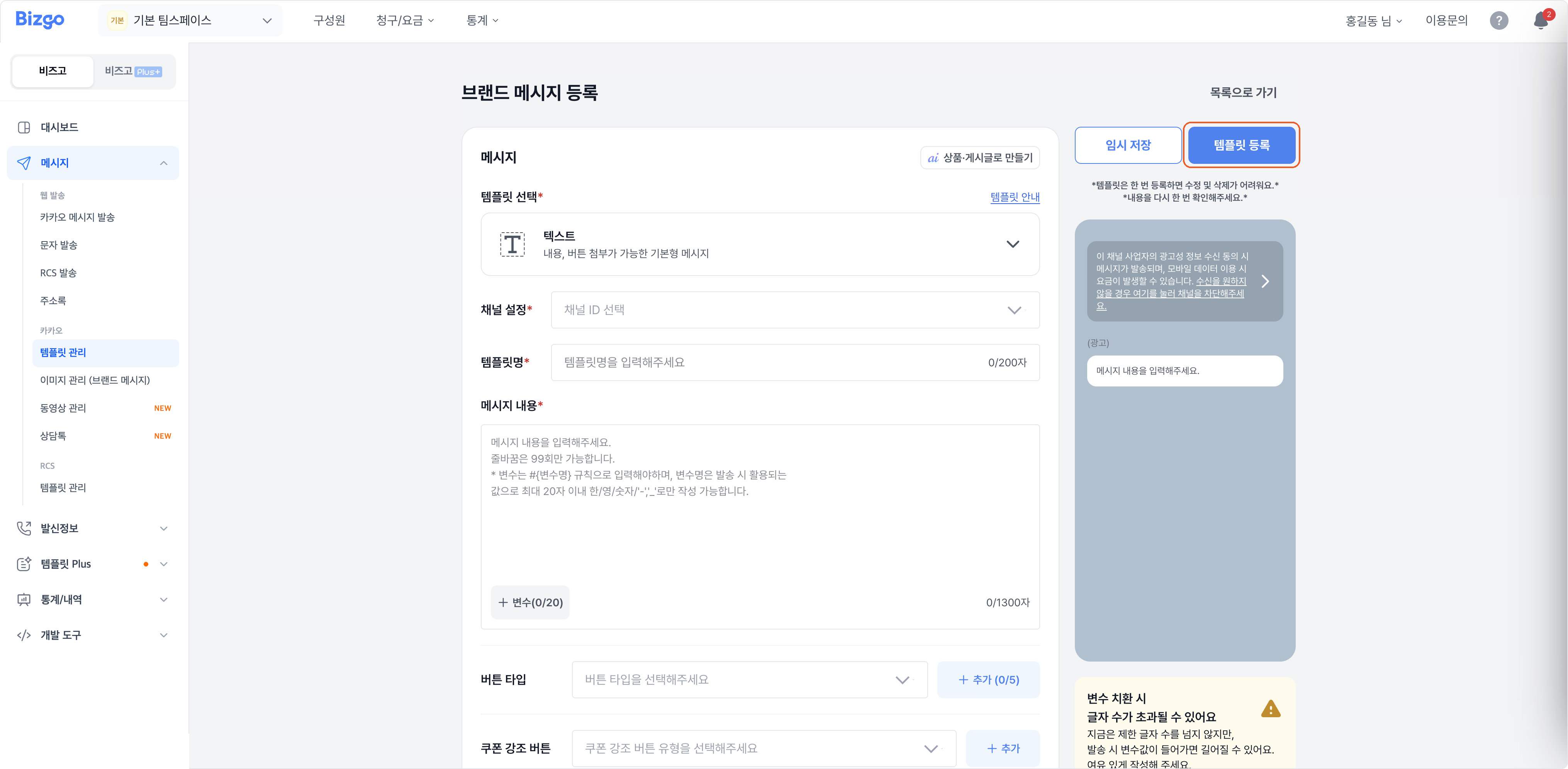
Click Register template. To continue later instead, click Save draft.
Check before you register
- A registered template is hard to edit or delete. Read it through once more first.
- A template at Blocked cannot be sent.
- A draft can only be continued or registered in the team space of the service it was started in.
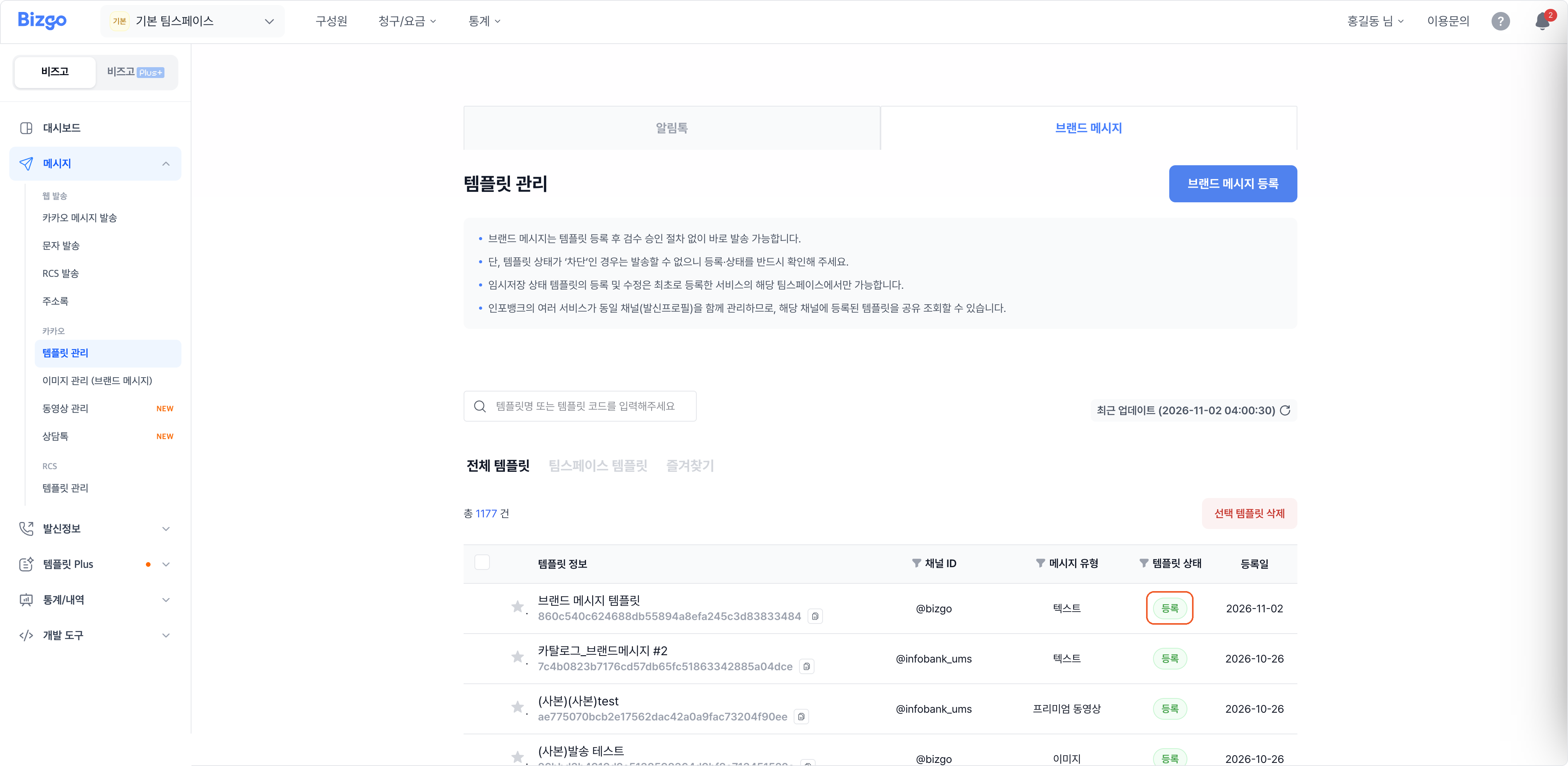
Once registered, it is added to the list at Registered and you can send a Brand Message with it immediately.
5. Manage templates by status
| Template status | Where it stands | What you can do |
|---|---|---|
| Draft | Saved only. Cannot be sent yet | Continue writing, then Register template · Delete |
| Registered | Registered and ready to send | Cannot be deleted |
| Blocked | Use is blocked. Cannot be sent | Cannot be deleted |
Only drafts can be deleted
In the template list, select a template at «Draft» and click Delete selected templates. Registered and blocked templates cannot be selected. Unfavourite a favourited template before deleting it.
Next
- Uploading images and videos first → Upload images for Brand Message
- Sending with the template → Send KakaoTalk messages
- Choosing who receives it → Brand Message send types