
Invite teammates
Invited accounts sit under the signed-up account so several people can use and manage the same resources. This avoids the security problems of sharing one account, and lets you grant different team spaces and permissions to each person.
Account types
Signed-up account — The main account you receive after signing up and entering a formal service agreement with Bizgo.
Invited account — A sub-account created under the signed-up account so it can share Bizgo resources.
Member permissions
There are three roles: Master, Manager, and Member.
- Master — Granted to the person who signed up and represents the company's account. Can reach and manage every console menu.
- Manager — Can use the main operational features such as registering sender numbers and sender profiles.
- Member — Can use only the minimum, such as web send.
Permissions for main features
| Feature | Master | Manager | Member |
|---|---|---|---|
| Invite members and change their settings | O | O | X |
| Create team spaces and change their settings | O | X | X |
| Issue keys and change their settings | O | X | X |
| Register sender numbers | O | O | X |
| Register sender profiles | O | O | X |
| Register Alimtalk templates | O | O | X |
| Apply for the 080 opt-out service | O | X | X |
| View and manage 080 opt-out numbers | O | O | X |
| Web send | O | O | O |
| View usage history | O | O | O |
| Statistics | O | O | O |
| View billing history and plans | O | O | O |
| Change billing information | O | X | X |
| Change company information | O | X | X |
| Request account closure | O | X | X |
Only the Master can issue API keys
Issuing a unified key and changing its settings require the Master role. If your developer holds the Manager or Member role, they cannot issue a key themselves — ask the Master to issue it, or adjust the role.
Adding a member
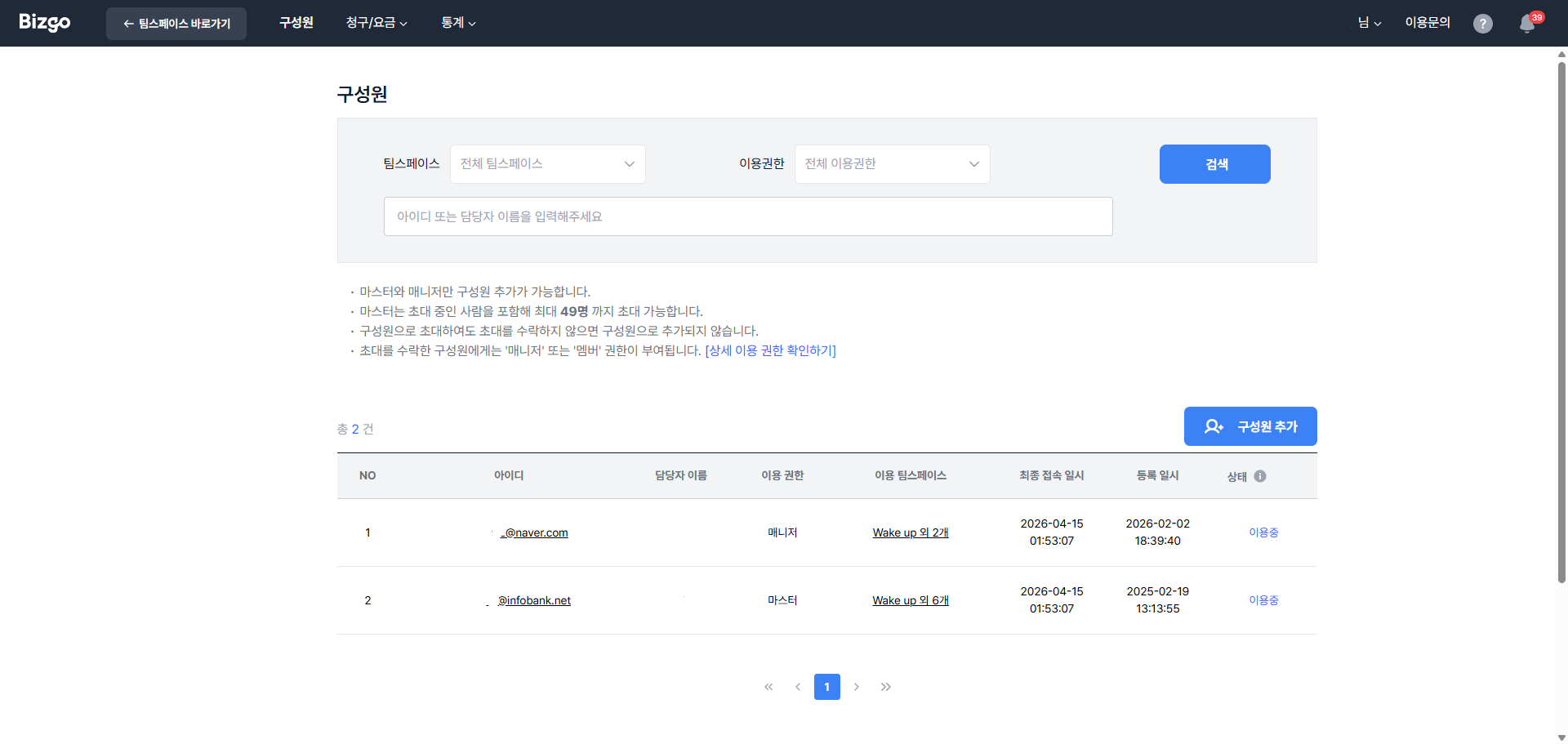
Go to Company menu > Members at the top, then click + Add member at the top right of the list.
| Item | What to enter |
|---|---|
| ID | The ID the invitee will sign in with |
| Contact name · mobile number | The invitee's name and mobile number |
| Permission | Choose Manager or Member |
| Team spaces | The team spaces they may use. Add to choose several |
| Mobile two-factor · IP security | The security settings to apply to this member |
Click Invite to send the invitation. The person becomes a member once they accept, and the status in the list changes from Invited to Active.
Invitation limit
The Master and Manager can add members, and you can invite up to 49 people including those still pending.
Managing members
Click a member's ID in the Members list to open Member settings. You can see the contact name, mobile number, permission, and team spaces, and you can change the permission and team spaces.
Editing your own information
The contact name and mobile number are changed by signing in with the invited account and going to Account menu > My information.
Next
- Central security management → Security settings
- Splitting team spaces → Create and manage team spaces