
Sign up
Click Quick sign-up at the top right of the Bizgo homepage.
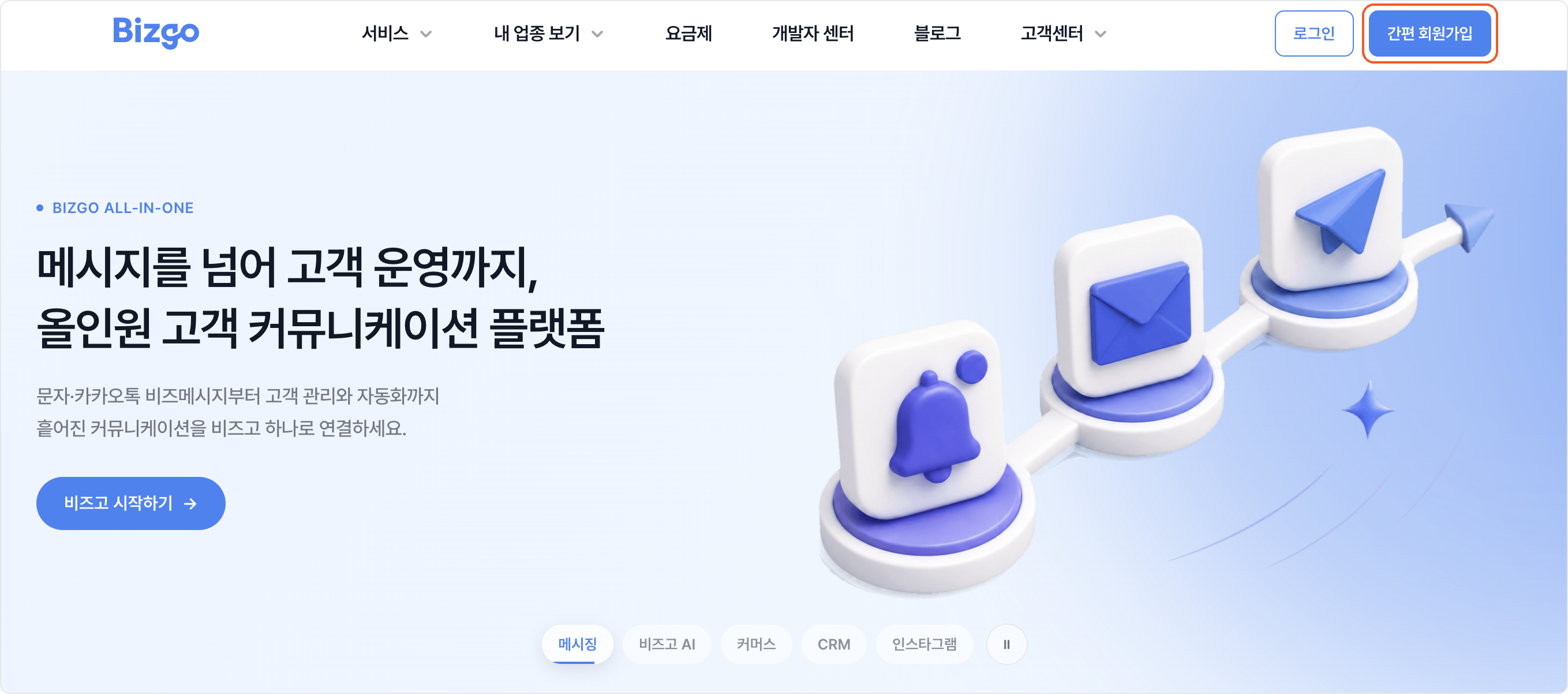
The email you sign up with becomes your company's master account
Use a work email on your company domain. Some things only the master can do — issuing a unified Key, creating a team space, and changing billing or company details. → Create and manage team spaces
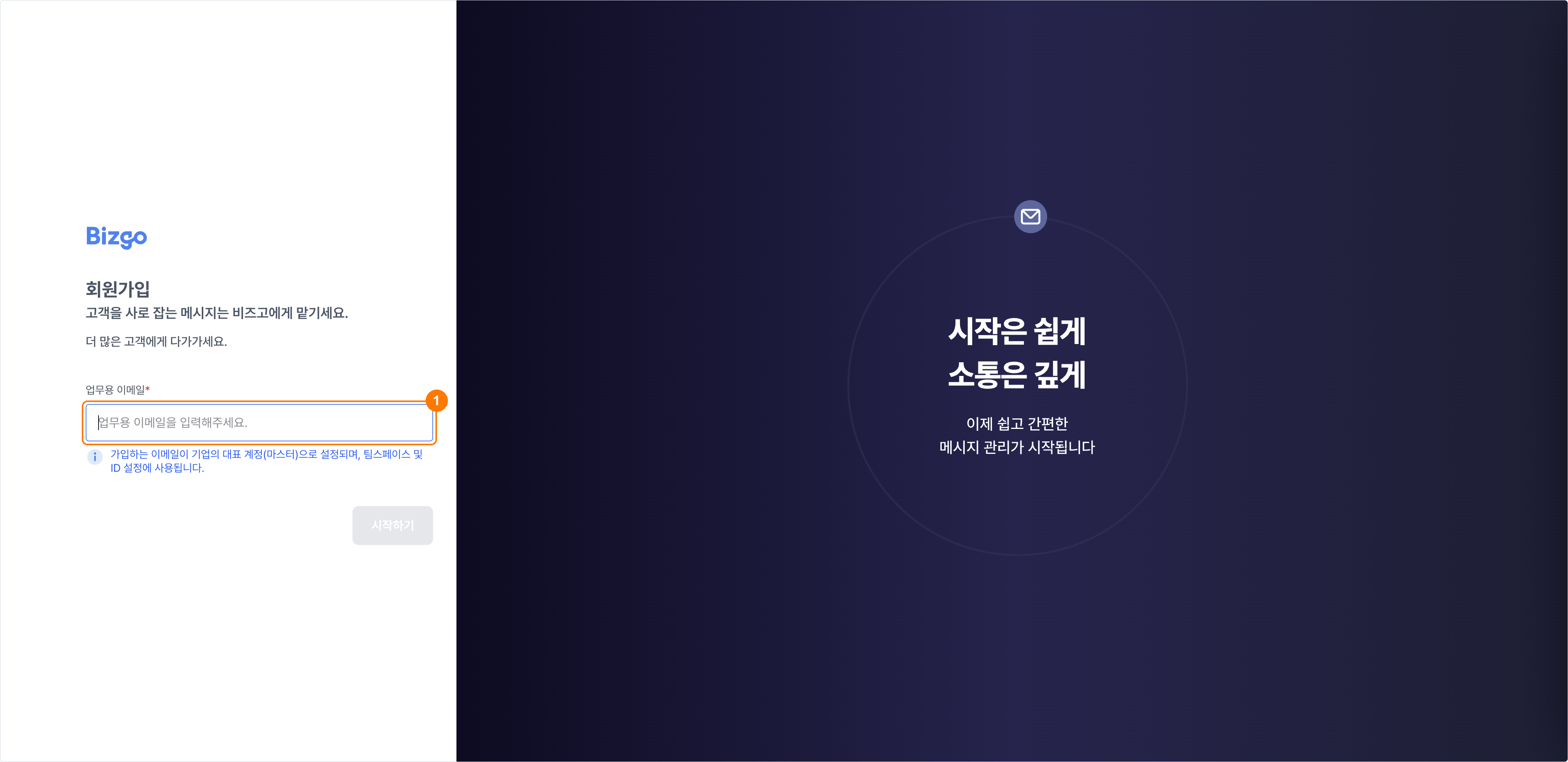
1. Enter and verify your work email
Enter your work email and click Get started. Finish verification from the email you receive, then click Verification complete.
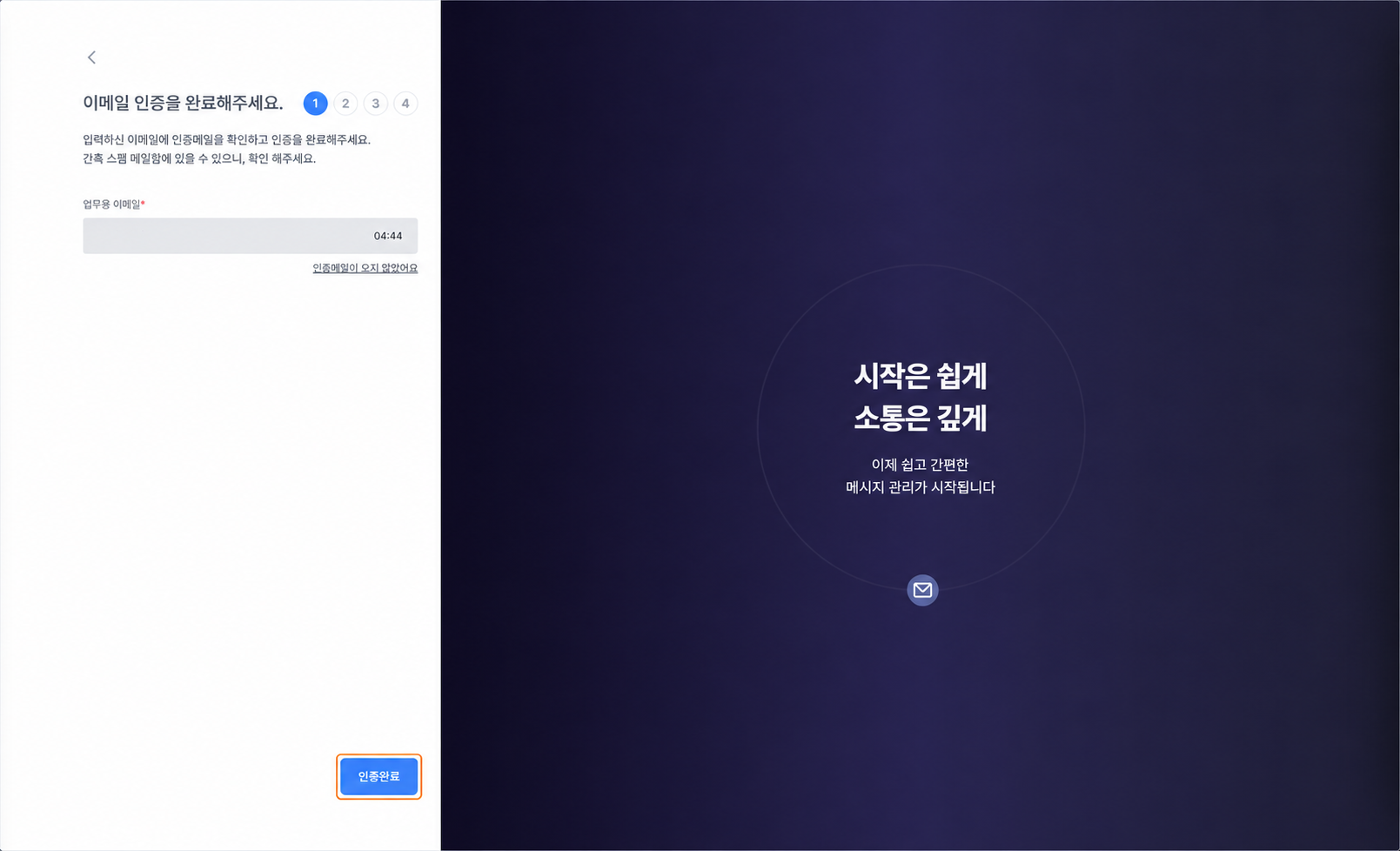
If the verification email does not arrive
Check your spam folder, then click I did not get the verification email to resend it.
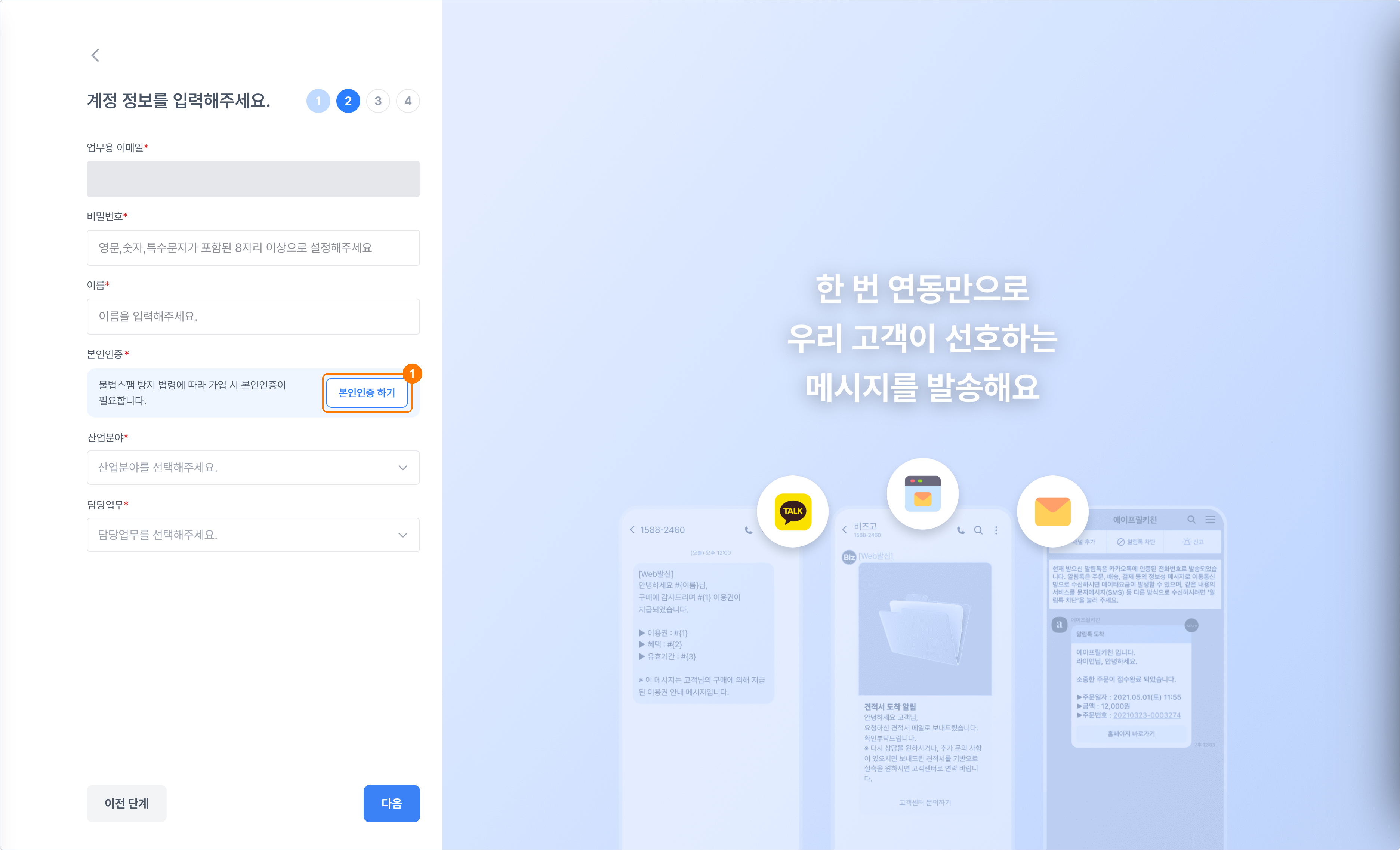
2. Enter your account details
Enter a password, your name, your industry, and your role. Complete mobile identity verification with Verify my identity, then click Next.
3. Enter your company details
Enter your business registration number, confirm the company name, then click Next.
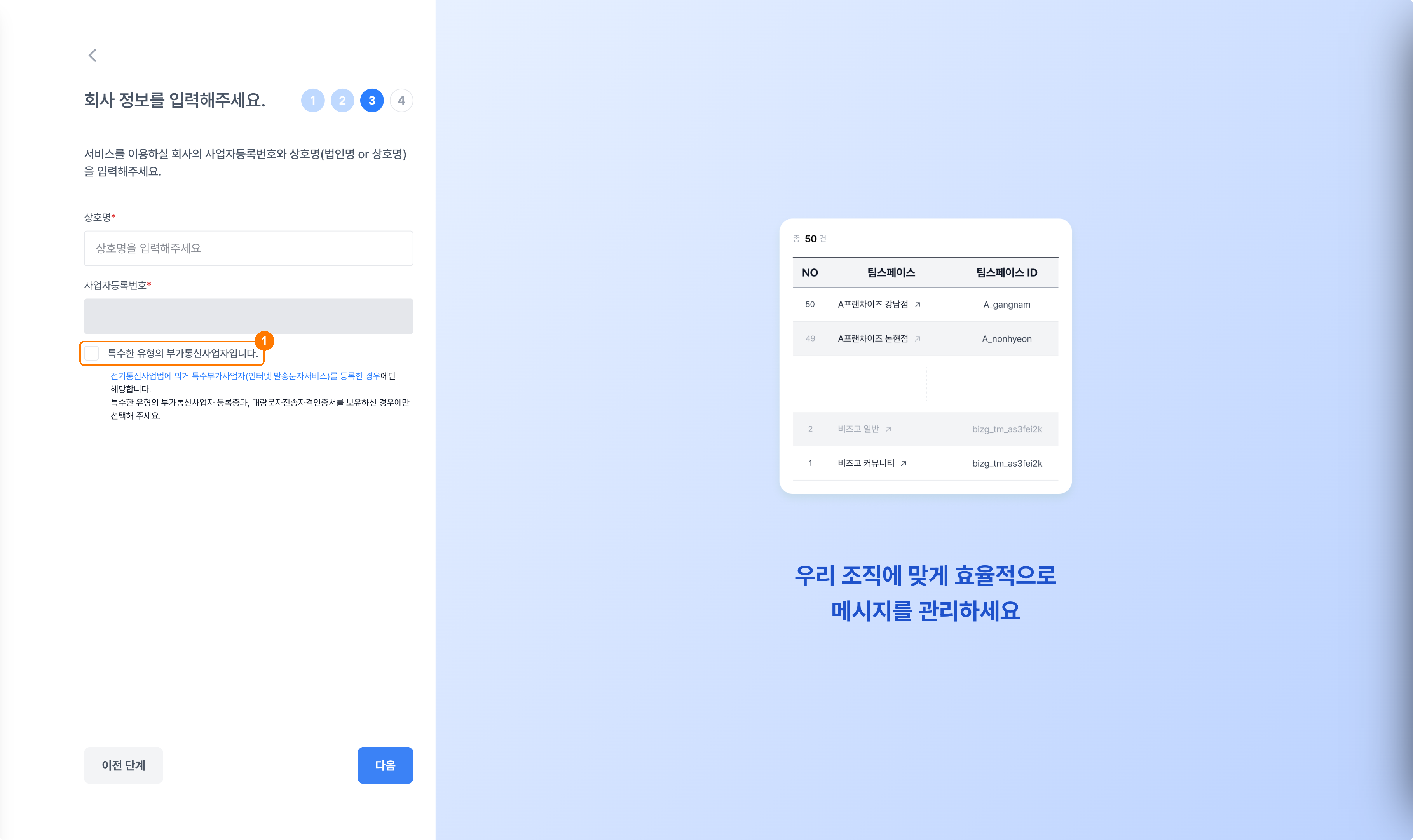
The special-category telecom provider checkbox
Only tick this if your company is registered as an SMS reseller — a special category of value-added telecommunications provider. An ordinary company leaves it unticked.
4. Accept the terms and finish
Accept the required terms and click Start using Bizgo. If a marketing consent dialog appears, click Sign up as is or Accept all and sign up to finish.
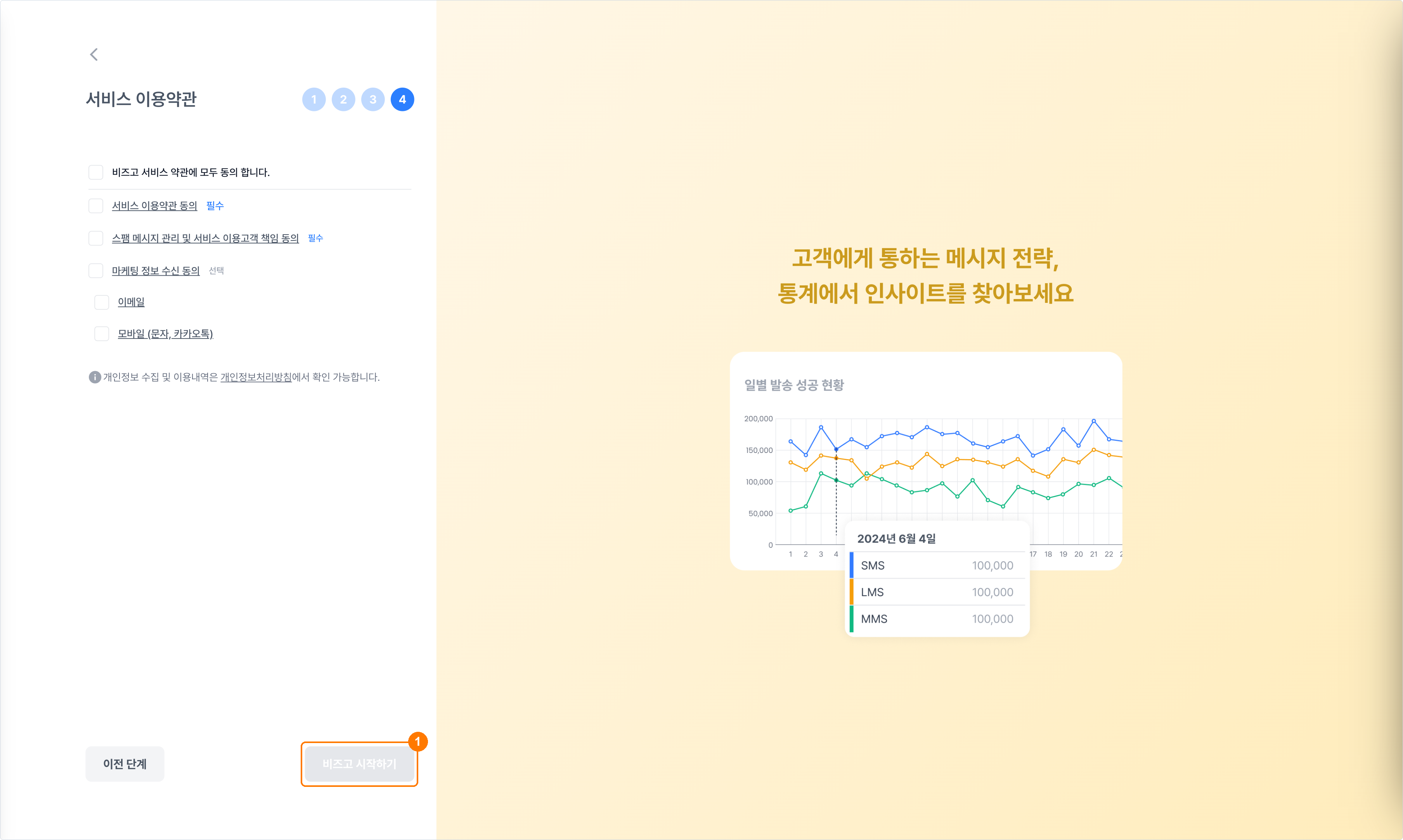
Once you are signed up, you land in the Bizgo console. Business verification comes next.
Changing your sign-up details
After signing up, open the account menu at the top right and choose Company information or My information. → Create and manage team spaces
Next
- The next step → Business verification
- Getting oriented in the console → Get started