
Create an RCS template
Under Bizgo > Messages > RCS > Template management, register the template you will use for RCS messages.
RCS Biz Center setup comes first
Sign up at the RCS Biz Center, create your brand and chatroom, and raise a Service inquiry. → Register an RCS brand
1. Start registering
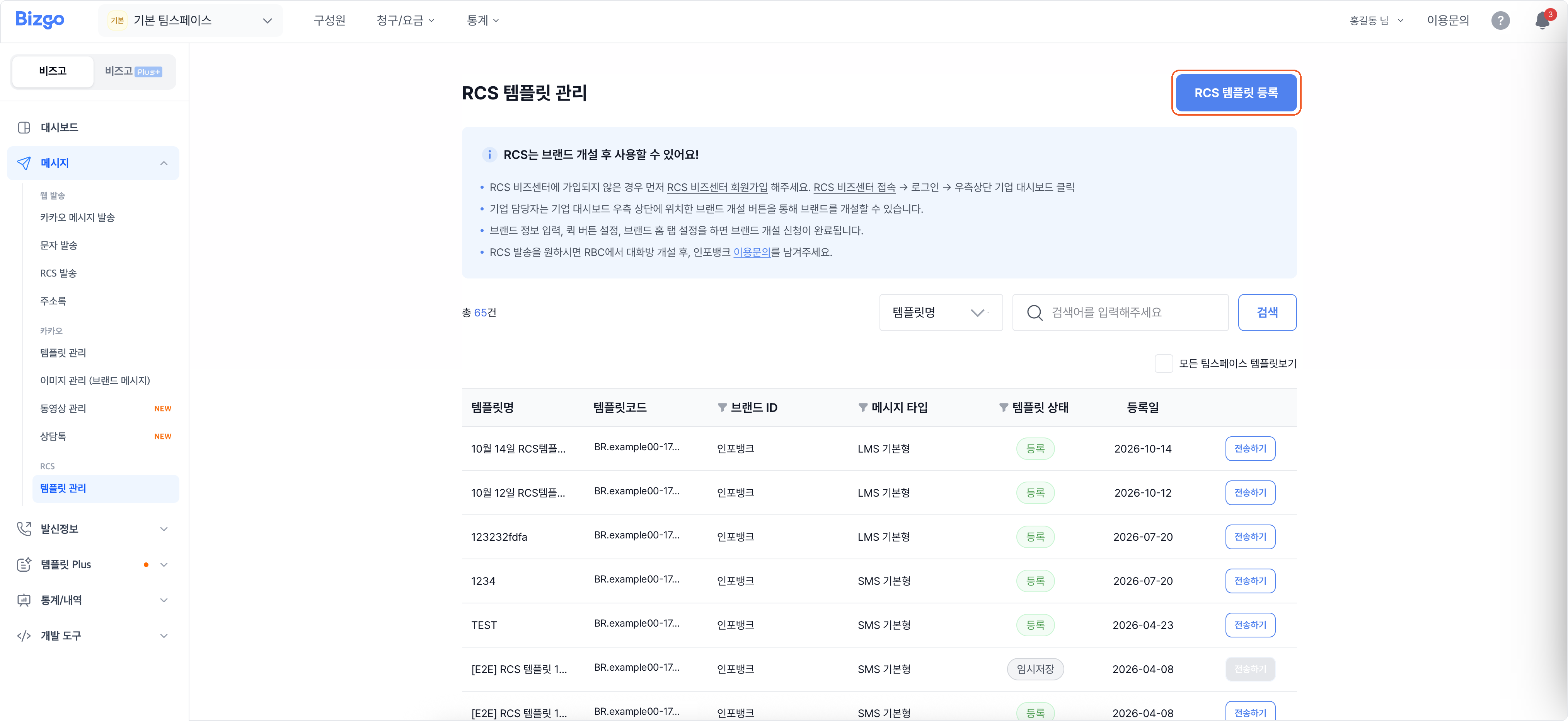
Click Register RCS template at the top right of the template management screen.
2. Choose the template type
Pick the message shape under Select template — SMS basic, LMS basic, and so on. Web sending currently supports only two types. The character limit depends on the type you choose.
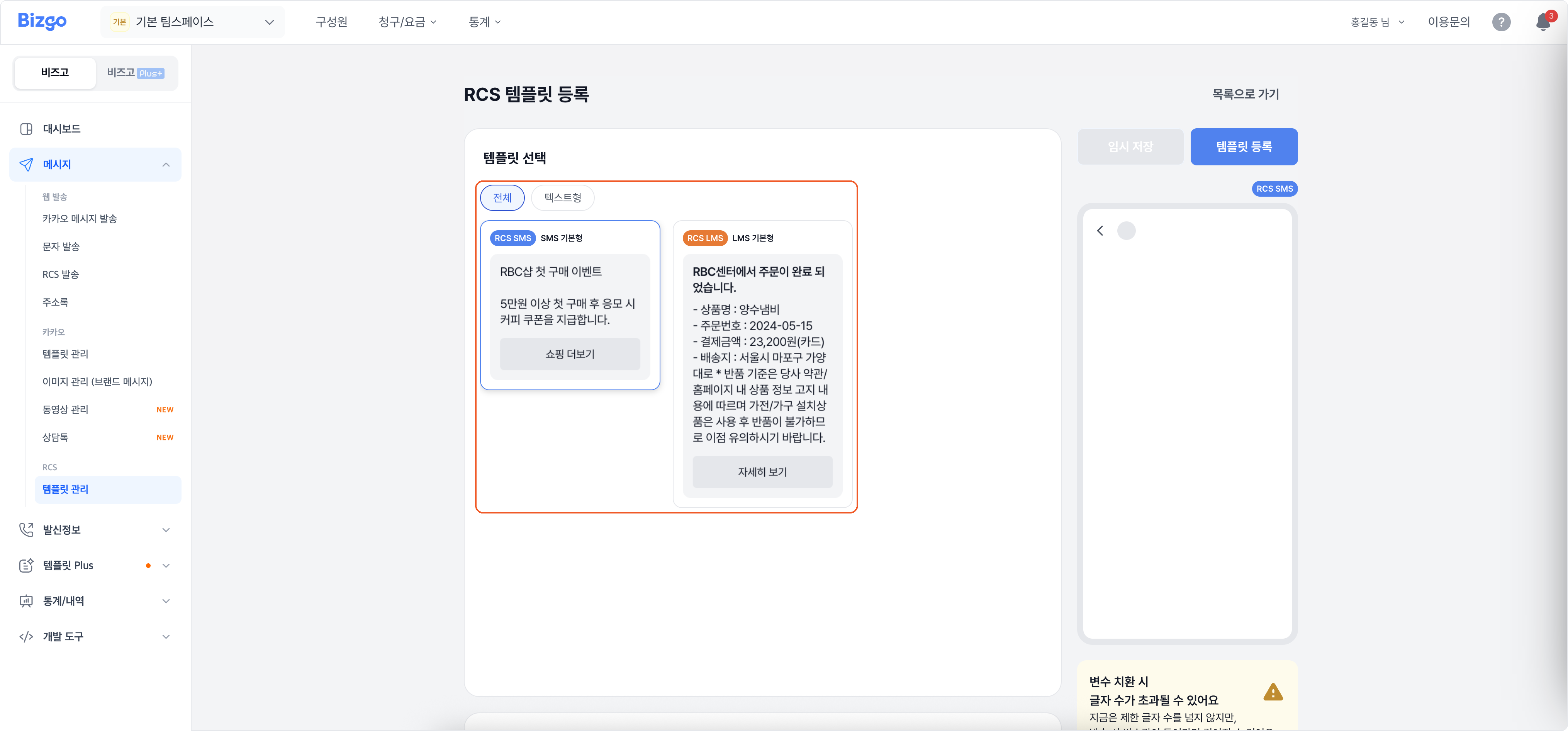
Card and carousel types go out through the API
Types you cannot pick for a web send can still be sent through the API. → RCS message API
3. Write the message
Enter a template name (up to 40 characters), select the brand, and write the body. Anything that differs per recipient goes in through + Variable as #{variableName} (up to 40). Add a button as URL, Phone, or Other if you need one, and tick This contains promotional information when it does.
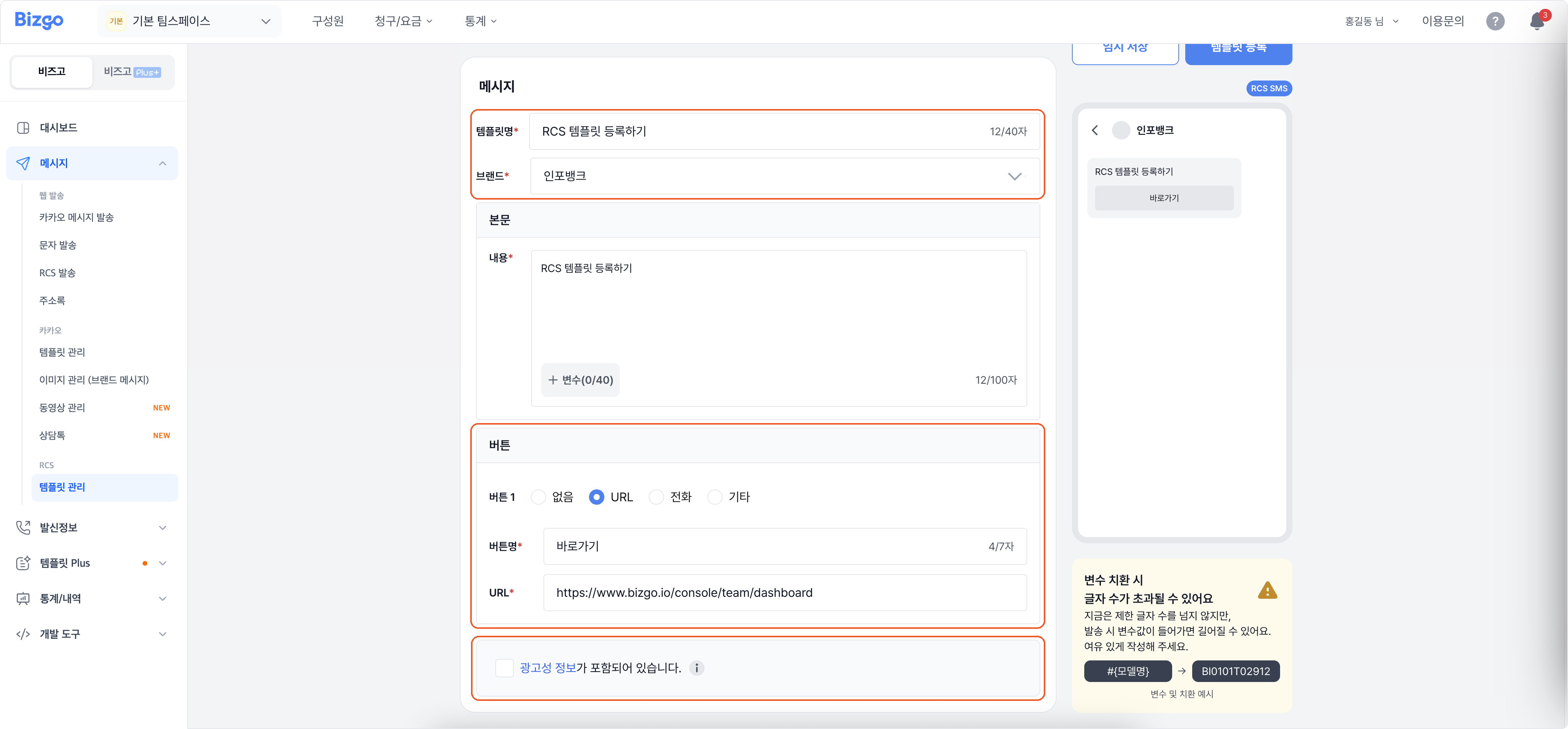
Variables can push you over the character limit
The draft may fit, but the values substituted at send time can make it longer. Leave yourself room.
4. Register the template
Check the preview on the right and click Register template. To continue later instead, click Save draft.
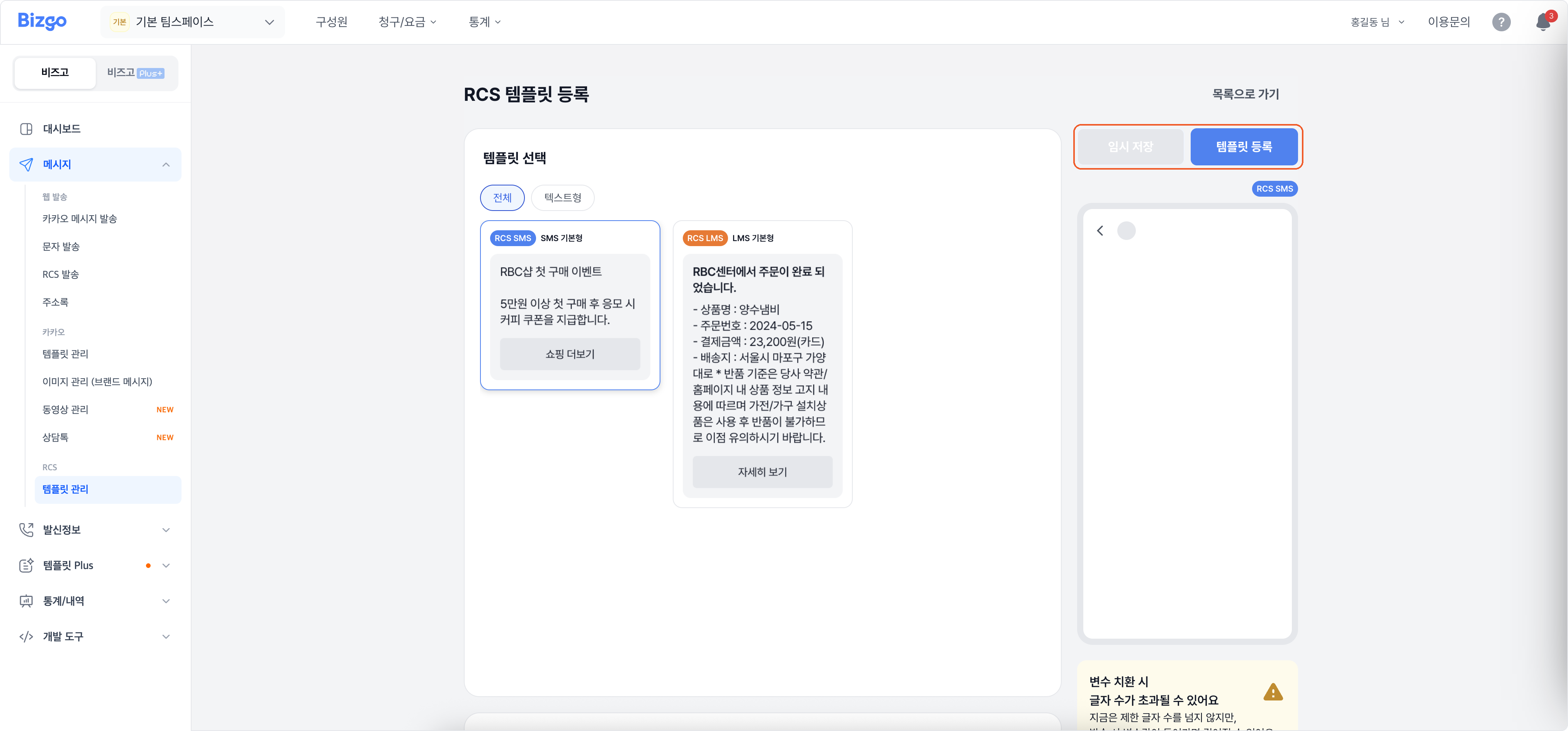
A registered template is added to the list at Registered. Send it with Send in the list, or load it on the RCS send screen with Load a registered template. A draft stays at Draft and has to be registered before it can be sent.
Next
- Sending with the template → Send RCS
- The API specification → RCS messages