
CS Talk integration flow
CS Talk is a channel for one-to-one support conversations with customers through a KakaoTalk channel. For a first integration, go through the steps below in order. The request and response specification for each step is in the CS Talk API reference.
A CS Talk registration API is now available
You can now register CS Talk and update its settings directly through the API. The registration result comes back step by step in data.steps, so if it fails you can see right away which step it stopped at.
When it fits best
CS Talk receives messages by webhook and sends them through the API, so the support screen can live inside your own system rather than in the Kakao admin center.
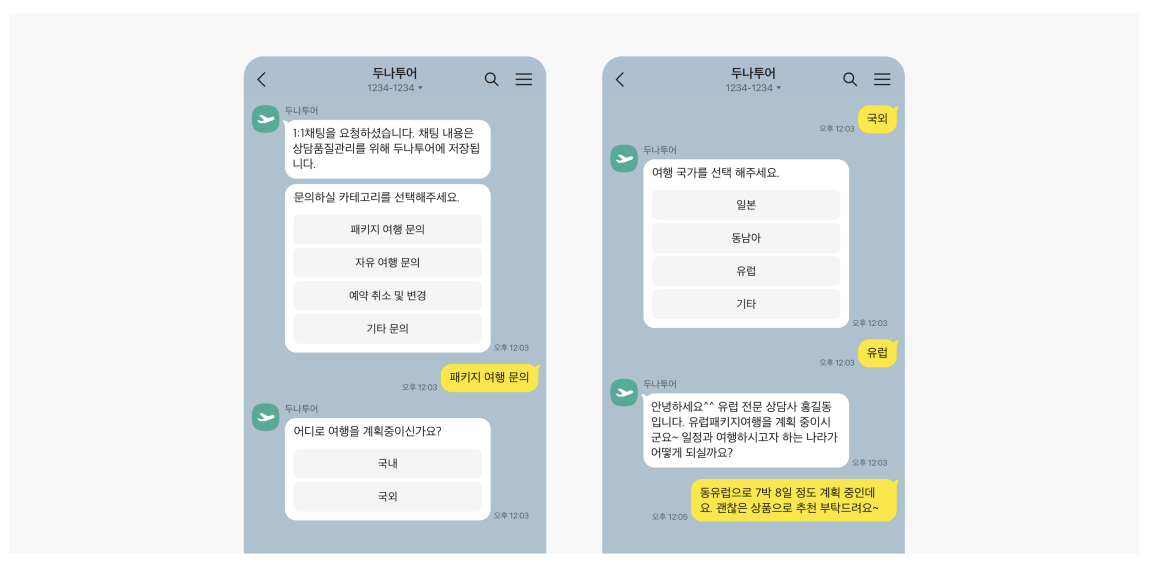
- Connecting to your CRM — Customer messages arrive by webhook, so if you tie
userKeyto the customer record in your CRM, agents can reply from the same screen while looking at the customer's history and orders. - Building your own support system — You can add features that fit your operation, such as assignment, queues, per-agent workload, and reply templates. The API handles sending and receiving messages.
- Keeping the support history yourself — Every message passes through your server, so you can store it in whatever form you need and use it for search and statistics.
- Running a bot alongside agents — A bot can answer first and hand over to an agent, and the conversation can go back to the bot when the agent is done.
- Opening support directly from your web or app — Send meta information such as an order number with the support connection button, and the agent knows which screen the inquiry came from before replying.
1. Register CS Talk
Register a sender profile for CS Talk. Set the webhook URL and whether CS Talk and chat are enabled at the same time.
- Register CS Talk
POST /api/comm/v1/account/kakao/sender/cstalk - To change the webhook URL and other settings later, use Update CS Talk
PUT /api/comm/v1/account/kakao/sender/cstalk/{senderKey}. The sender profile key cannot be changed.
2. Activate CS Talk
Turn CS Talk on for the channel with Activate CS Talk.
- Activating it turns off the chat capability of the KakaoTalk channel so that no support history is lost.
- If you are moving from another hub partner, deactivate CS Talk there first. You cannot receive support messages in between, so finish your Sandbox integration and testing beforehand.
3. Receive support messages by webhook
Messages from users, session expiry, read information, delivery results, and more arrive at the webhook URL you registered. See Receive support messages (Webhook) for the specification.
- Return HTTP 200 with a response that matches the specification. A failed delivery is retried up to 3 times.
- The same event can arrive again, so deduplicate on
msgKey. - Events may not arrive in the order they happened.
4. Send support messages
You can send agent messages only while a support session is open, which happens when a customer message arrives. A session lasts 30 days after the last customer message and is extended each time a customer message comes in.
- Use Send a plain message for text, images, and files, and the rich message API for buttons, cards, and the like.
- Customers are identified by
userKey. The same user has a different key on a different KakaoTalk channel.
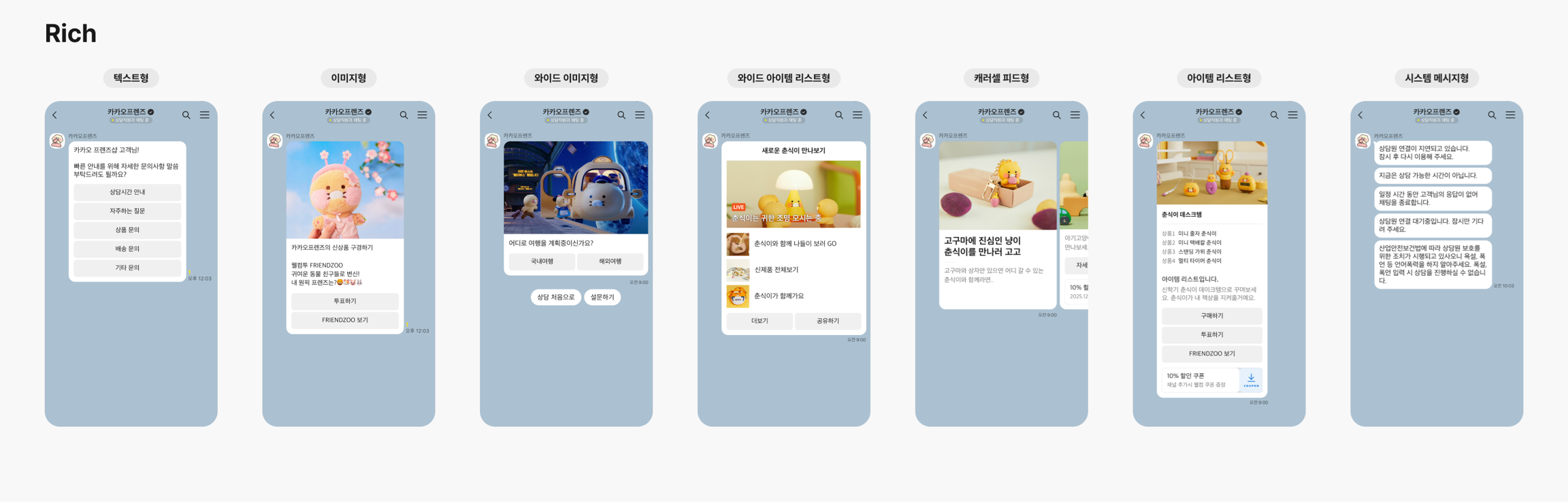
5. End the conversation
When the conversation is over, close the session with End a support conversation. If you also run a bot, End a support conversation and hand over to the bot passes the conversation to the bot.