
Create an Alimtalk template
Under Bizgo > Messages > Kakao > Template management, register the message template you will send as Alimtalk and submit it for Kakao review.
Register a Kakao channel first
A template is built against a registered Kakao channel (its channel ID). Check that the channel status is Available before you start. → Register a Kakao channel
1. Start registering
On the Alimtalk tab, click Register Alimtalk template and choose Single.
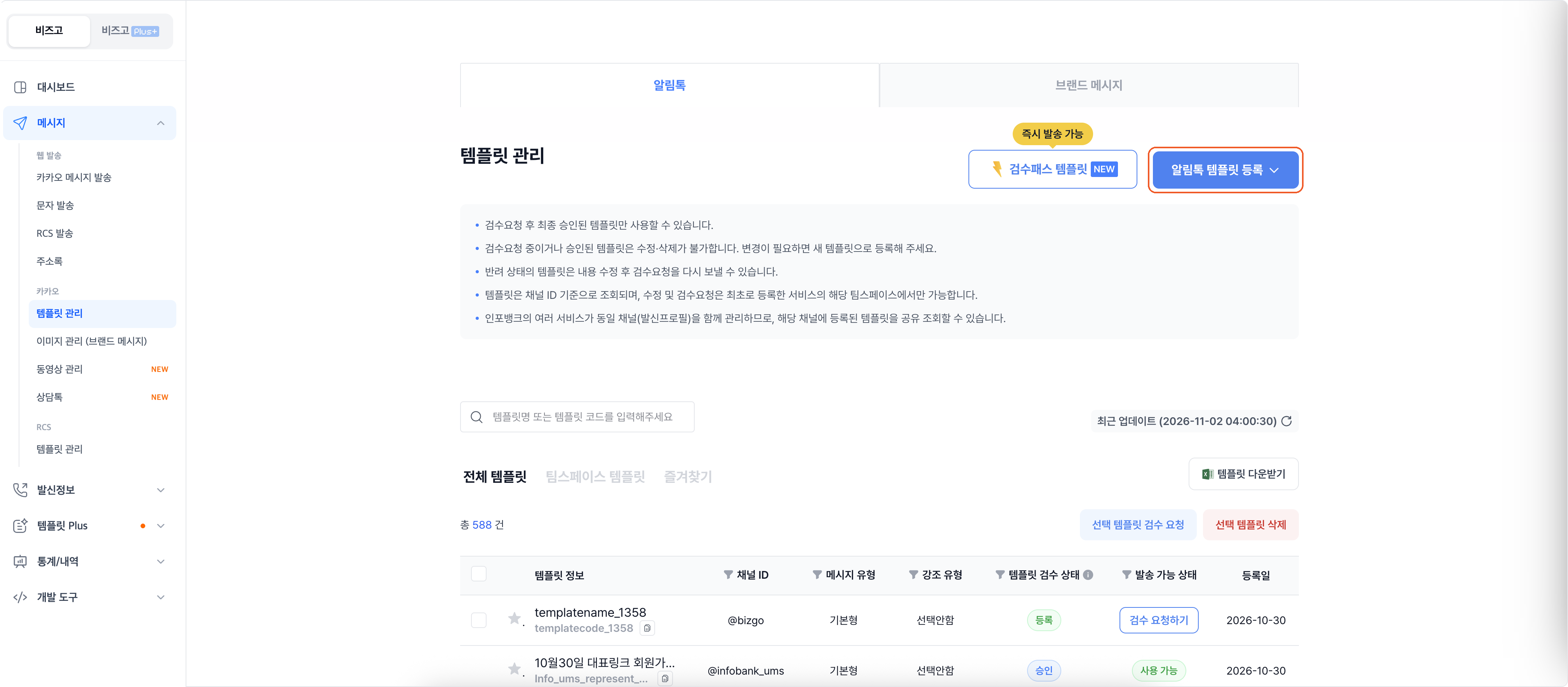
Registering several at once
Register Alimtalk template > Bulk takes an Excel file with up to 1,000 templates.
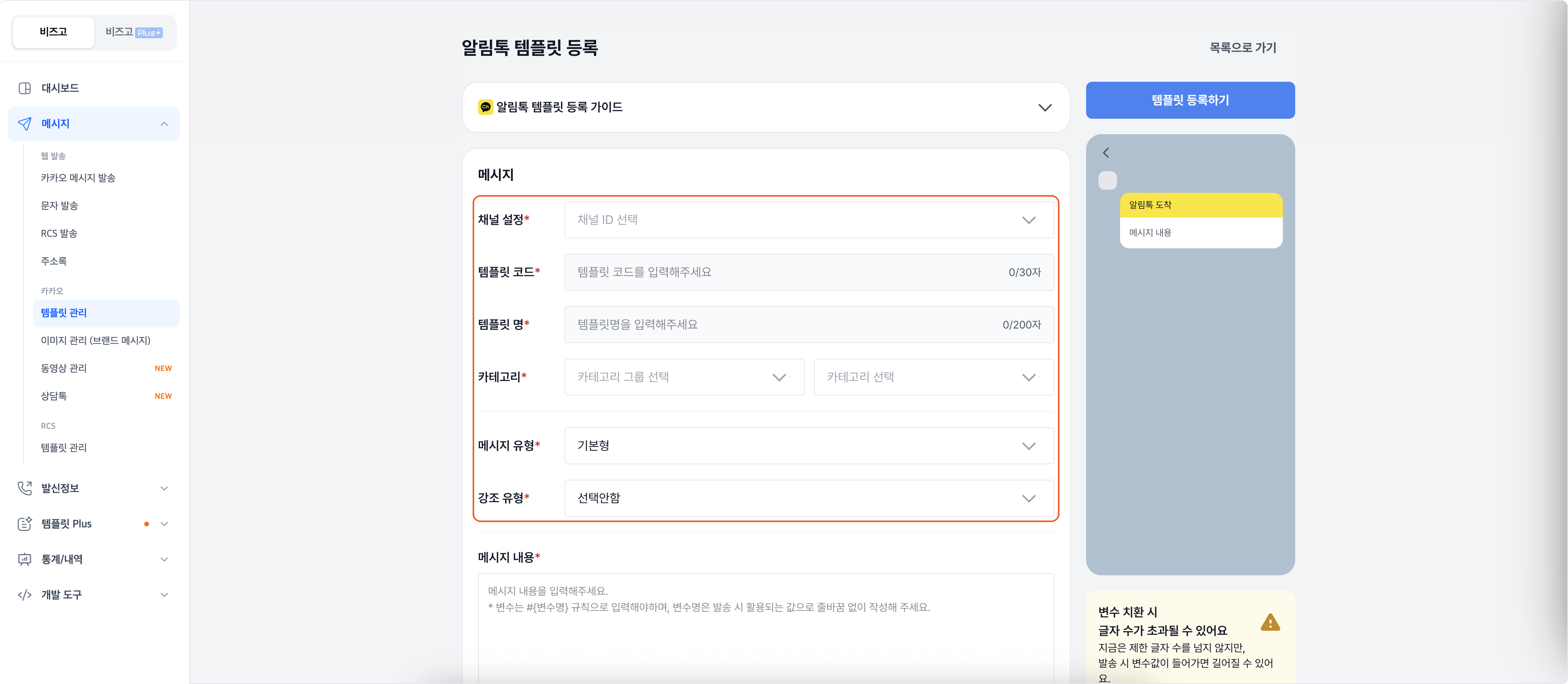
2. Enter the template details
Select the channel ID, then enter the template code (up to 30 characters), the template name (up to 200 characters), and the category. Choose the message type and the emphasis type.
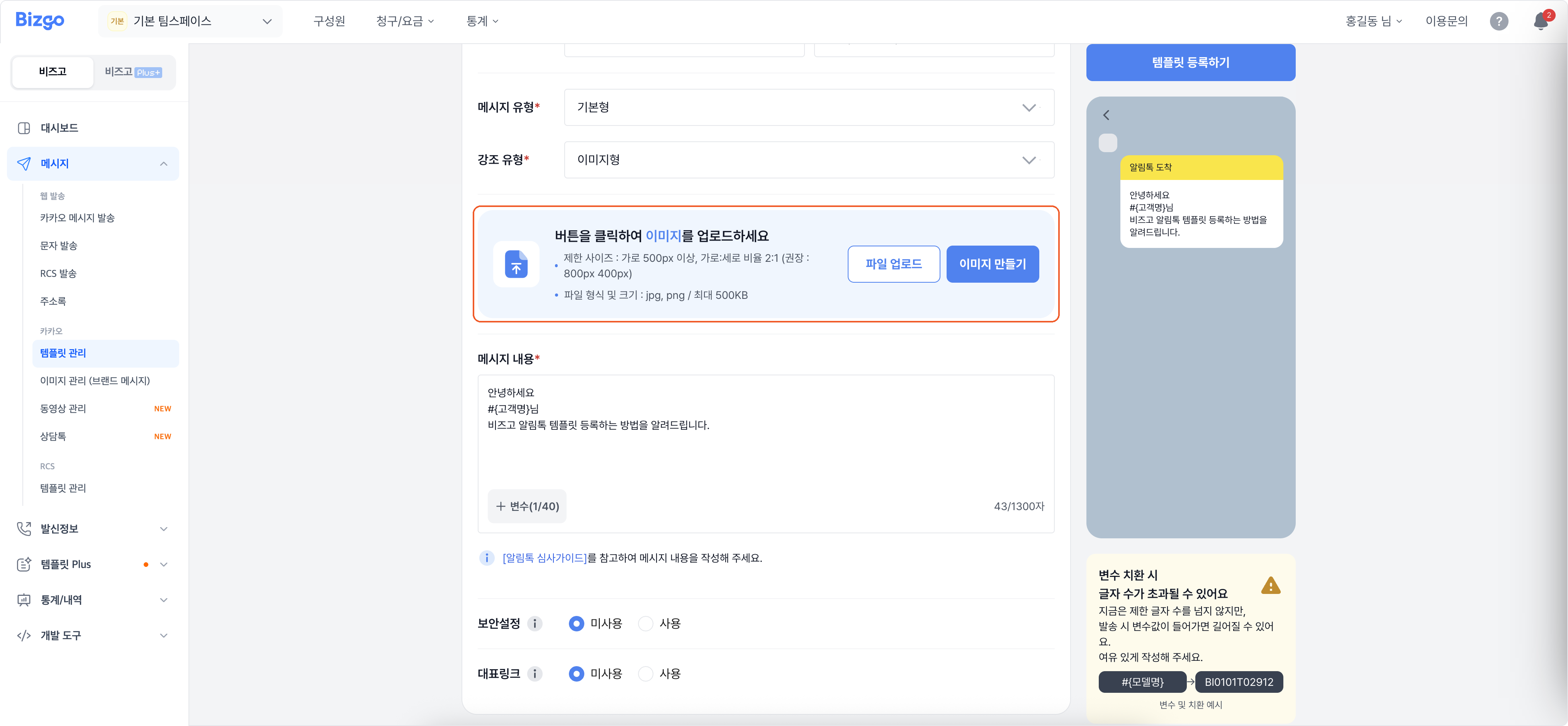
If you chose the image emphasis type
Upload an image with Upload file, or build one with Create image. Use a JPG or PNG at least 500px wide with a 2:1 ratio (800×400px recommended), 500KB or smaller.
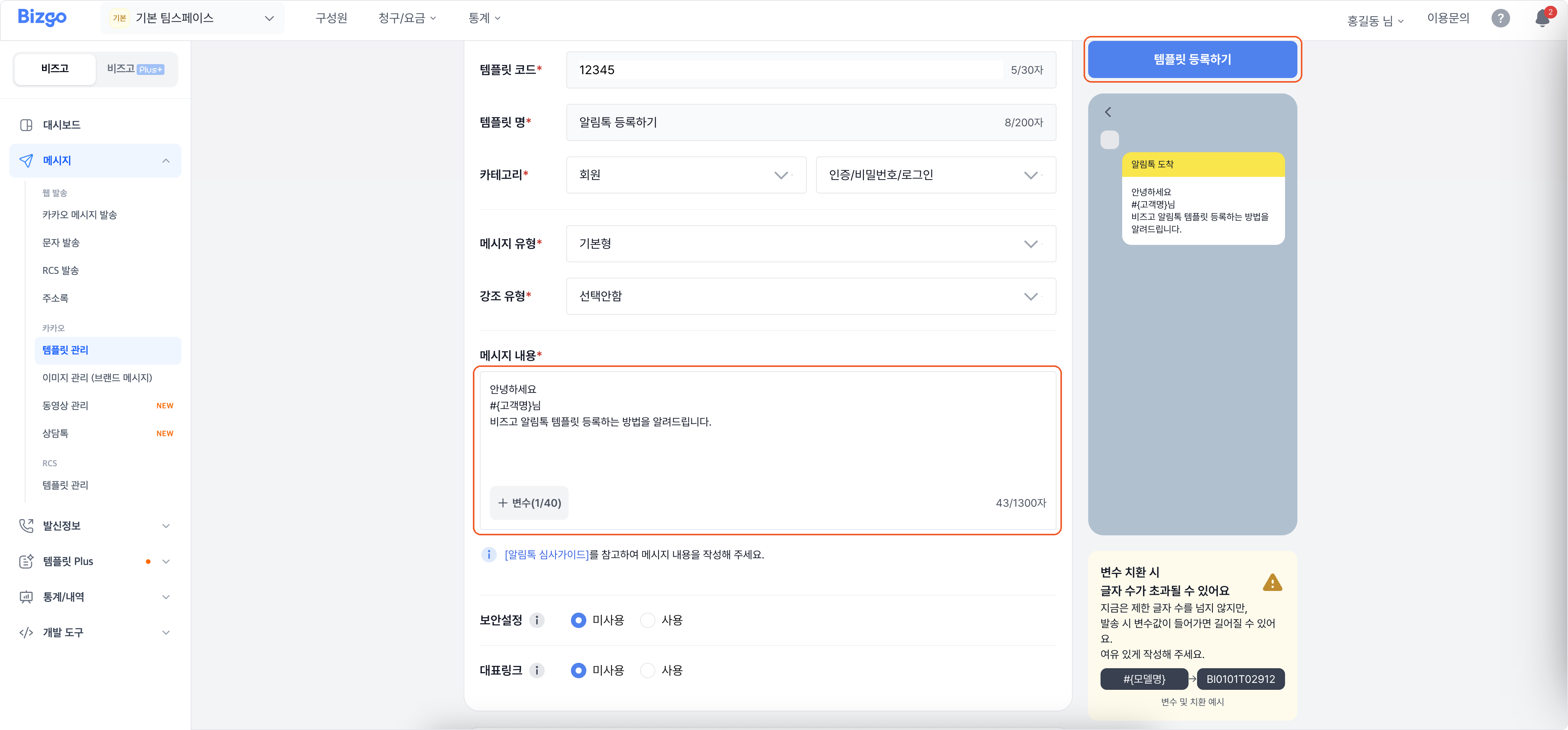
3. Write the message and register
Write the body in 1,300 characters or fewer. Anything that differs per recipient goes in as #{variableName}. Add buttons (up to 5) and quick links (up to 10) if you need them, check the preview on the right, then click Register template.
Where the message bubble leads — the main link
Setting Main link to Use lets you choose where a customer goes when they tap the message bubble itself. Tapping a button follows that button's own link instead.
- Fill in at least one of mobile web link, PC web link, iOS app link, or Android app link.
- Web links use the
https://form; app links use a URL scheme. - The main link cannot contain variables.
These templates will not register, or will be rejected
- Variable errors, more than 40 variables, or a body made only of variables
- A template code or name that already exists on the same channel
- Variables in a non-URL button (button variables only work in URLs)
- Malformed links (http/https for web, a scheme for apps)
4. Request review
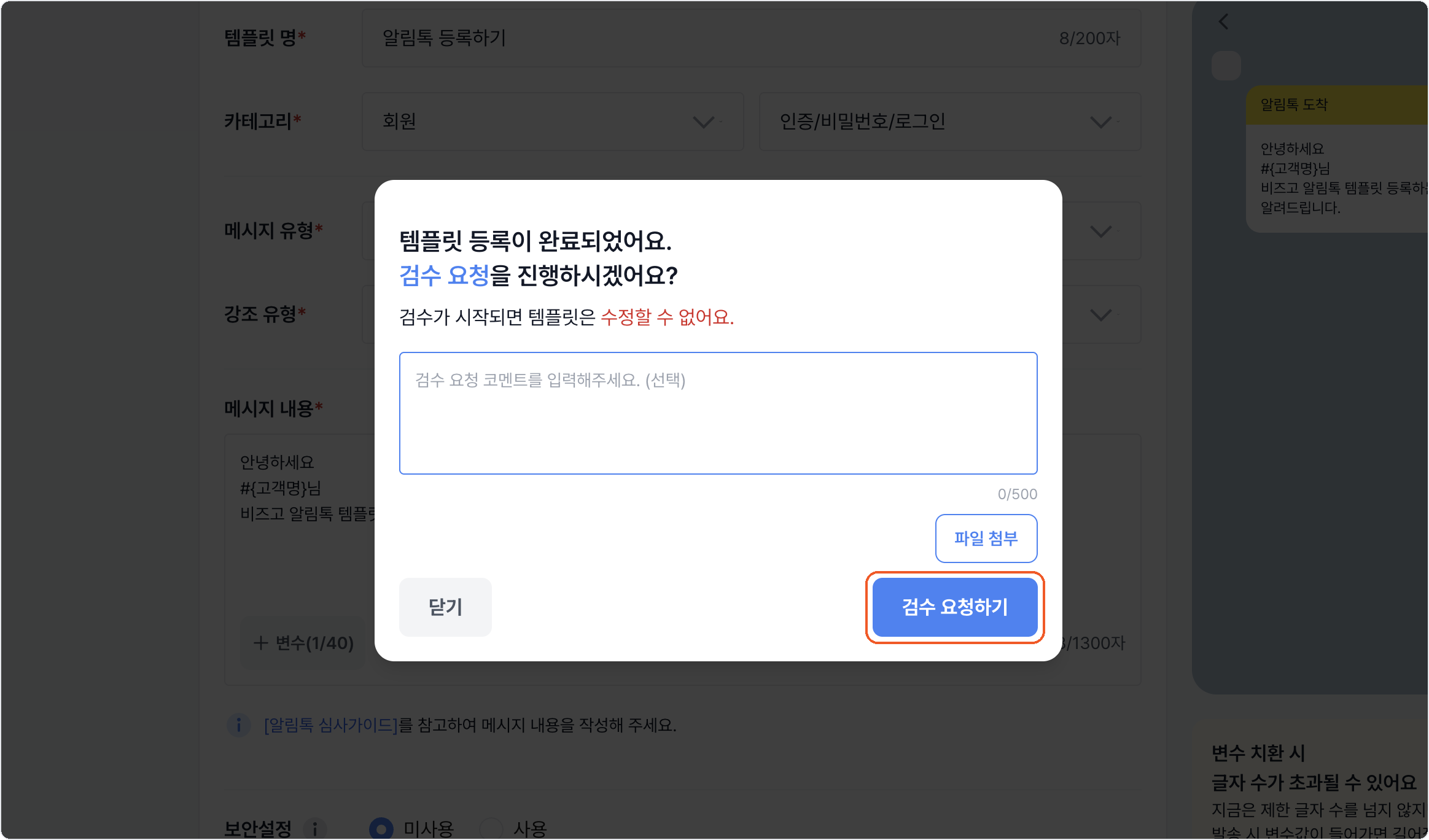
Once registered, the review dialog opens. Add a review comment (up to 500 characters) or attach supporting material with Attach file if you need to, then click Request review.
Requesting review later
Clicking Close in the review dialog saves the template at Registered. You can click Request review from the template list later, or select several and use Request review for selected.
Once review is requested, you cannot edit
A template under review or already approved cannot be edited or deleted. To change it, register a new template. A rejected template can be edited and resubmitted.
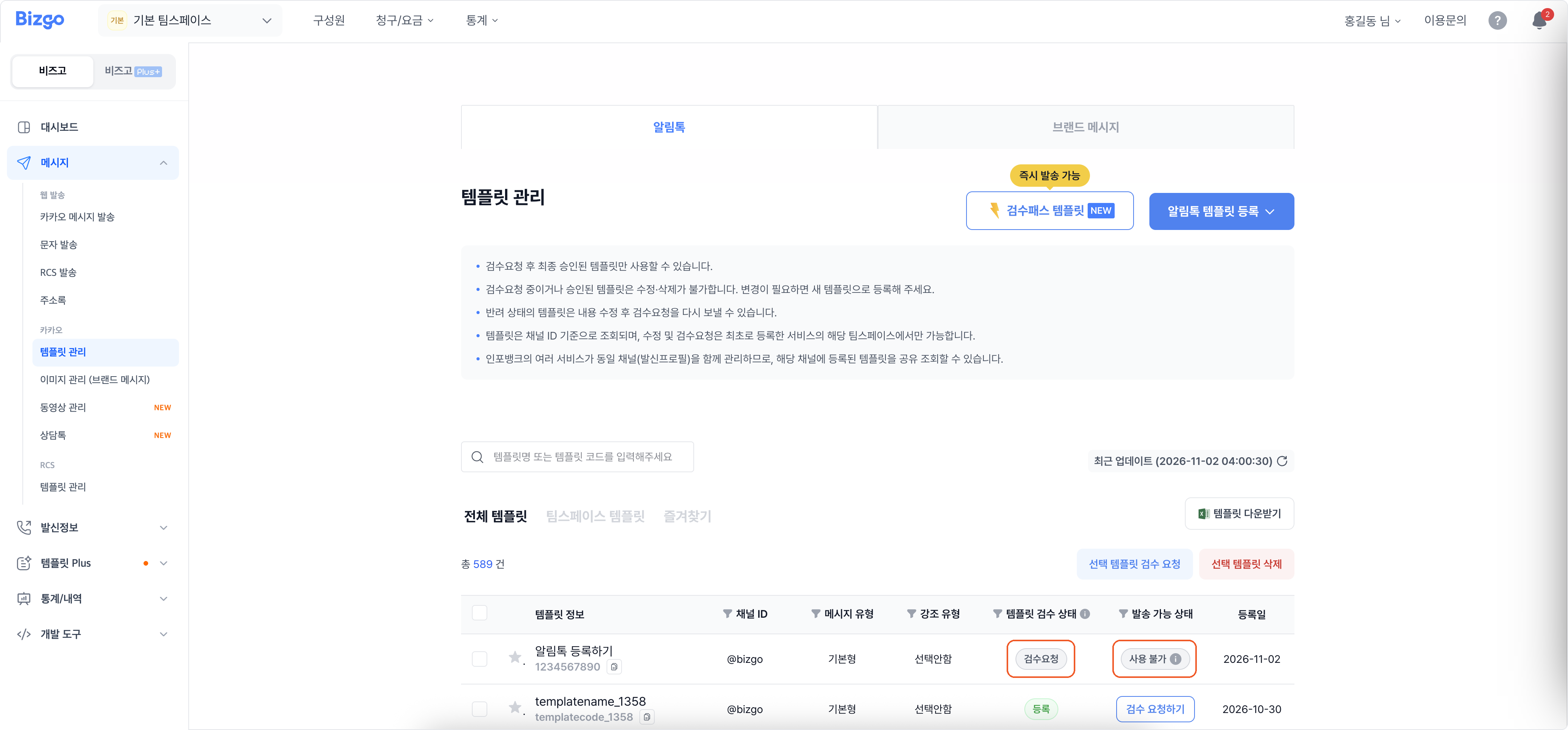
After you request review, the list shows the template at Review requested with its send status as Unavailable. When the review status turns Approved and the send status Available, you can send Alimtalk with it.
5. Manage templates by status
The «Template review status» column in the list tells you what you can do right now.
| Review status | Where it stands | What you can do |
|---|---|---|
| Registered | Saved, review not requested yet. A cancelled review returns here | Edit · Request review for selected · Delete |
| Review requested | Kakao is reviewing it. The content is locked | Cancel review request on the detail screen returns it to «Registered». Cannot be deleted |
| Rejected | Review rejected. Cannot be sent | Edit template on the detail screen, then resubmit · Delete |
| Approved | Passed review. Alimtalk can be sent | Cannot be edited or deleted. Only Cancel approval |
The detail screen sometimes shows one of these markers instead of a review status. With any of them, Alimtalk cannot be sent.
| Marker | What it means |
|---|---|
| Blocked | Restricted under Kakao policy |
| Dormant | Deactivated after a long period without use |
| Suspended | Use has been stopped |
A deleted template cannot be recovered
There is no way back. If you need the same content, register it again and go through review again. Under Kakao policy only templates at «Registered» or «Rejected» can be deleted, and a favourited template has to be unfavourited first.
Next
- Sending with the template → Send KakaoTalk messages
- Sending Alimtalk through the API → Kakao Biz Message