
Agent Overview
The Agent is an automated sending program that reliably connects your system to the Bizgo message API. It reads the send targets accumulated in your database, sends the messages, and then collects the result reports again to update their status.
Put simply, the Agent handles the send, collect, and retry flow that you would otherwise have to implement repeatedly, which reduces your operational burden. Today it covers one-way message scope only (SMS/LMS/MMS, RCS, Kakao Alimtalk, and Kakao Brand Message).
In this document you can follow the whole sequence, from first adopting the Agent through installation, configuration, feature setup, and operation and inspection.
QUICK NAVIGATION
Guide shortcuts
Get started
Basic processing flow
Basic processing flow
Customer side
Agent daemon (on the customer server)
Bizgo side
Request flow: load into the customer RDB → Agent (Collector/Sender) → Bizgo API.
Result flow: Bizgo report → Agent (Receiver) → status applied to the customer RDB.
- Your system loads the send target data into the database.
- The Collector picks up the send targets and puts them on the Queue.
- The Sender sends the data to the Communication API (
/api/omni). - The Receiver receives the report and applies the status.
- The Migrator tidies up the operational tables and the history tables.
API key
The Agent uses a unified API KEY when it calls the Bizgo API. Never expose the API KEY in a browser or a client app — manage it only in the Agent configuration file or in a server environment variable.
How to issue and check the API key
- Sign up for Bizgo, sign in, and complete business verification.
- Select a team space.
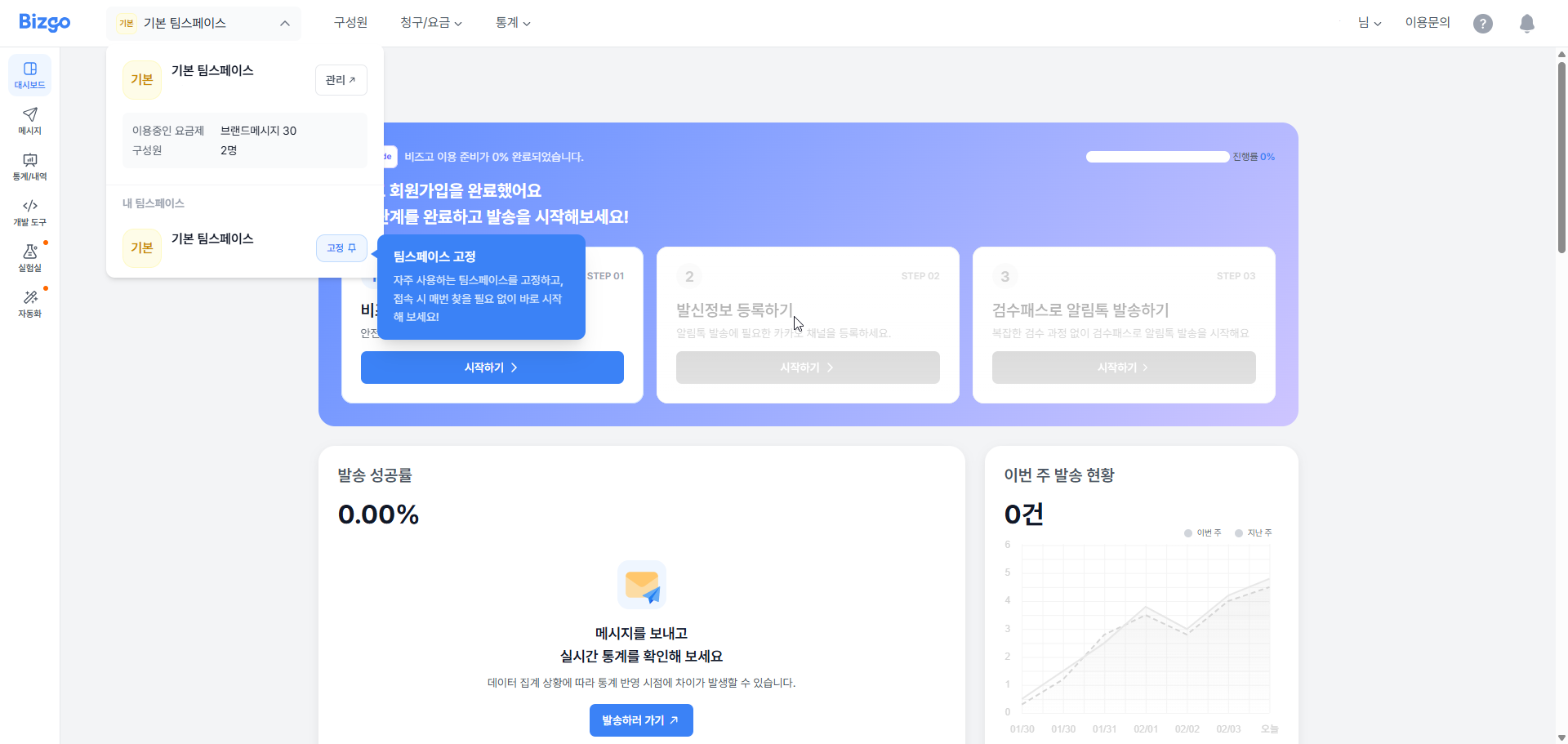
- From the team space dashboard, go to
연동 Key 바로보기 > 연동관리(View integration key > Integration management). - Copy the unified type (API Key) and apply it to your Agent configuration.
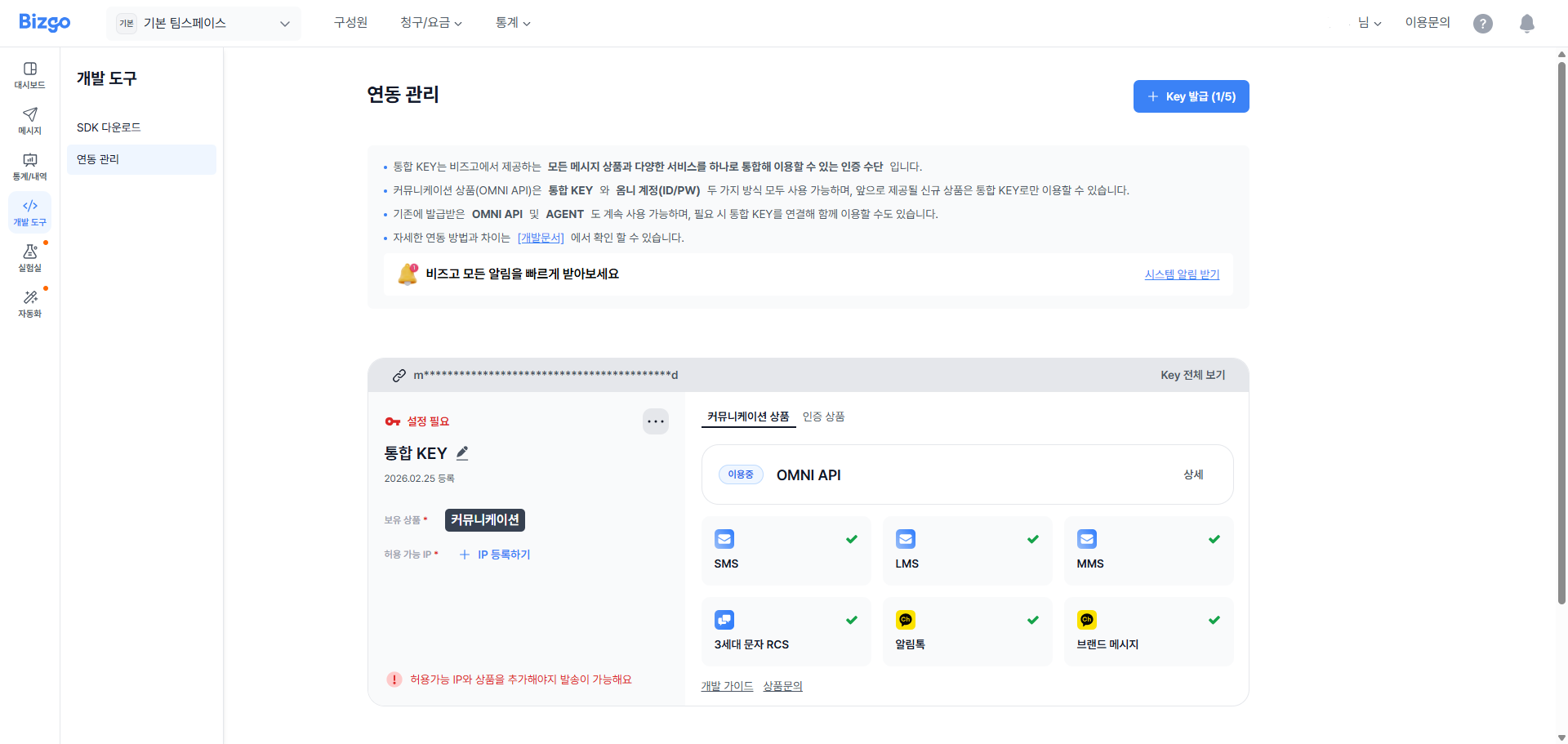
Agent integration settings
Base URL
Product (production)
Check IPshttps://mars.ibapi.krSandbox (test)
Check IPshttps://sandbox-mars.ibapi.krHow to use Sandbox
Sandbox uses the same API key as production, but it is a test environment where no real message is sent. Right after a key is issued or changed, it can take up to 10 minutes to take effect.
Operational checkpoints
- If you rotate the API KEY, apply it to the Agent configuration and restart so that it takes effect immediately.
- Right after you issue an API KEY, synchronization can take up to about 10 minutes.
- Sandbox integration tests run on a virtual network, so nothing is actually delivered.
Firewall and security protocols
TLS
- All API communication is served over HTTPS (TLS).
- TLS 1.2 or later is supported as the minimum.
Firewall allowlist IPs
Production environment
- Request direction (your system → Bizgo API)
PORT 443
3.35.80.15,43.203.83.174,54.116.59.12 - Receive direction (Bizgo Webhook → your server)
3.37.214.83,3.39.75.204,43.200.251.230,211.115.98.154,211.115.98.155,211.115.98.205
Sandbox environment
- Request direction (your system → Bizgo API)
PORT 443
211.115.98.231 - Receive direction (Bizgo Webhook → your server)
211.115.98.231
ACL (IP access control)
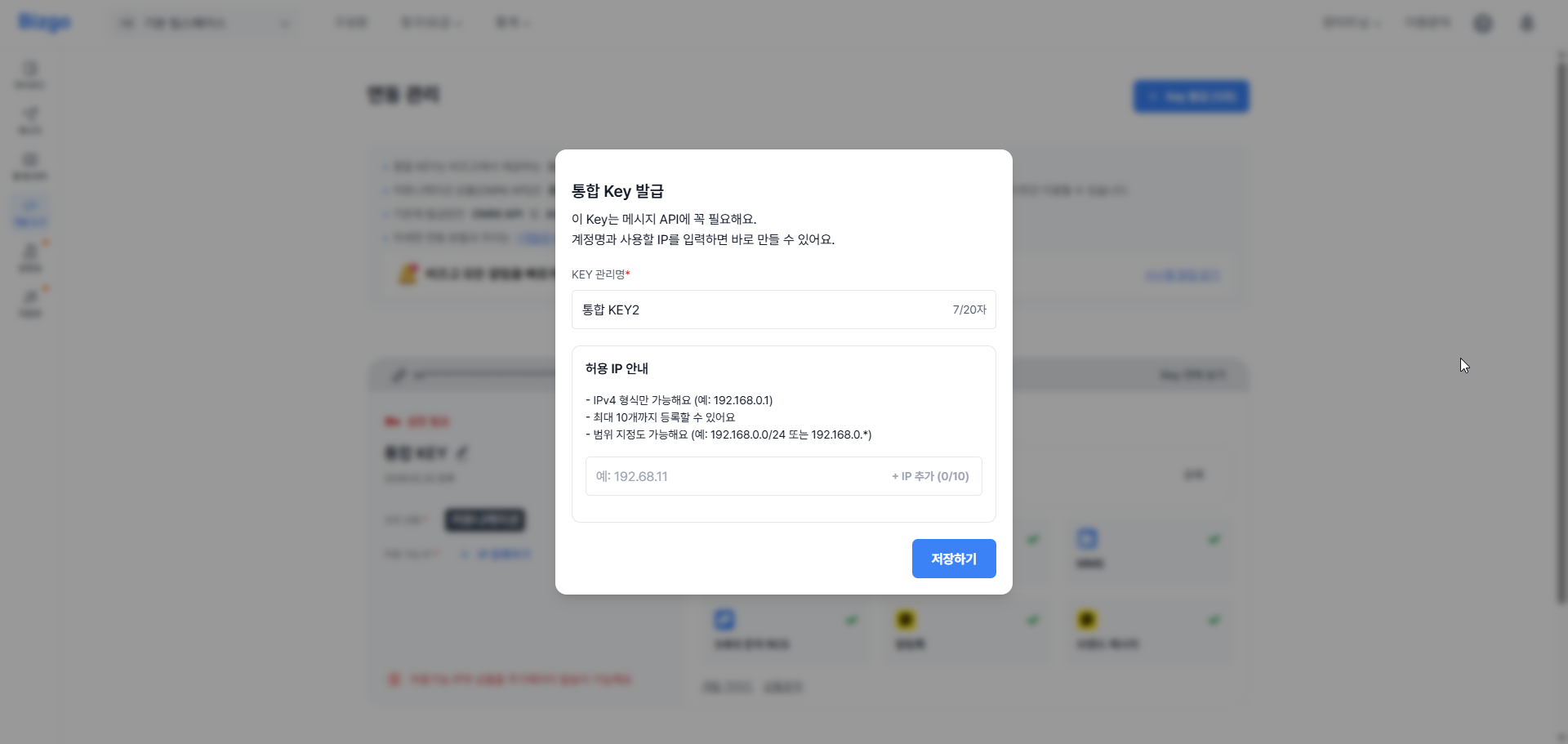
- Before you call the API, you must register the calling server IP against the unified type (API Key).
- If your development and production environments are separate, register the public IP of each environment.
- A call from an IP that is not registered in the ACL is blocked at the authentication and access control stage.
How to register an IP
- Sign in to Bizgo, then go to
발송관리 > 연동관리(Send management > Integration management) in the left menu of the console. - Register the allowed IPs for each unified type (API Key).
- Reflect both your development and production server IPs for stable operation.
Ratelimit
- A per-second or per-minute call limit can apply to each API.
- When you exceed the limit,
429 Too Many Requestsor an equivalent policy error can be returned. - We recommend that you tune the Agent retry interval together with the batch size for stable operation.
Security checklist
- Store the API KEY only in a Vault or in a server environment variable.
- If there is any chance the key has been exposed, revoke and reissue it immediately.
- Mask sensitive data (phone numbers, payloads, authentication values) in your request and response logs before you store them.
- Manage your firewall outbound policy so that it allows only the Bizgo API domain and port.