
Check automated send results
Check how your automation scenarios ran and what they sent. Go to Bizgo Plus+ > Automation > Run history.
1. Read the run history
Run history shows the scenario, the status, the start time, and how long it ran. Clicking a row opens that scenario's run details.
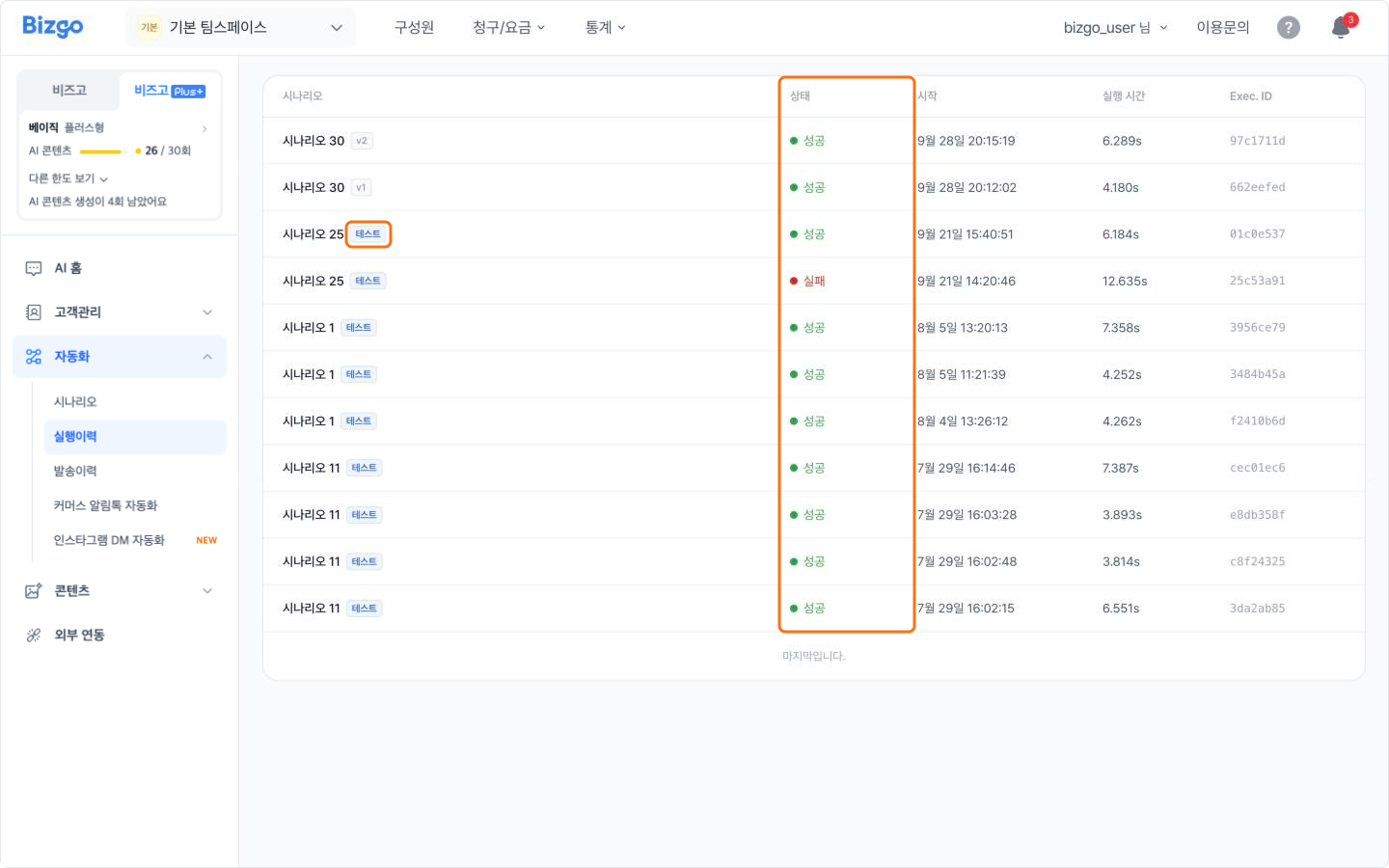
| Status | What it means |
|---|---|
| Succeeded | The scenario ran to the end |
| Failed | It stopped on an error — open the run details to see which node it stopped at |
| Running | It is running right now |
| Queued | It is waiting its turn |
| Paused | The run is paused |
| Cancelled | The run was cancelled |
Rows marked «Test» are test runs, and rows marked «Deleted» belong to a scenario that has since been removed.
Looking at one scenario only
Expand the row in the Scenarios list and click View run history. The Run history tab above the canvas shows the same thing.
2. Read the send history
In Send history, filter by request date, message type, and status. Clicking a row opens the send details.
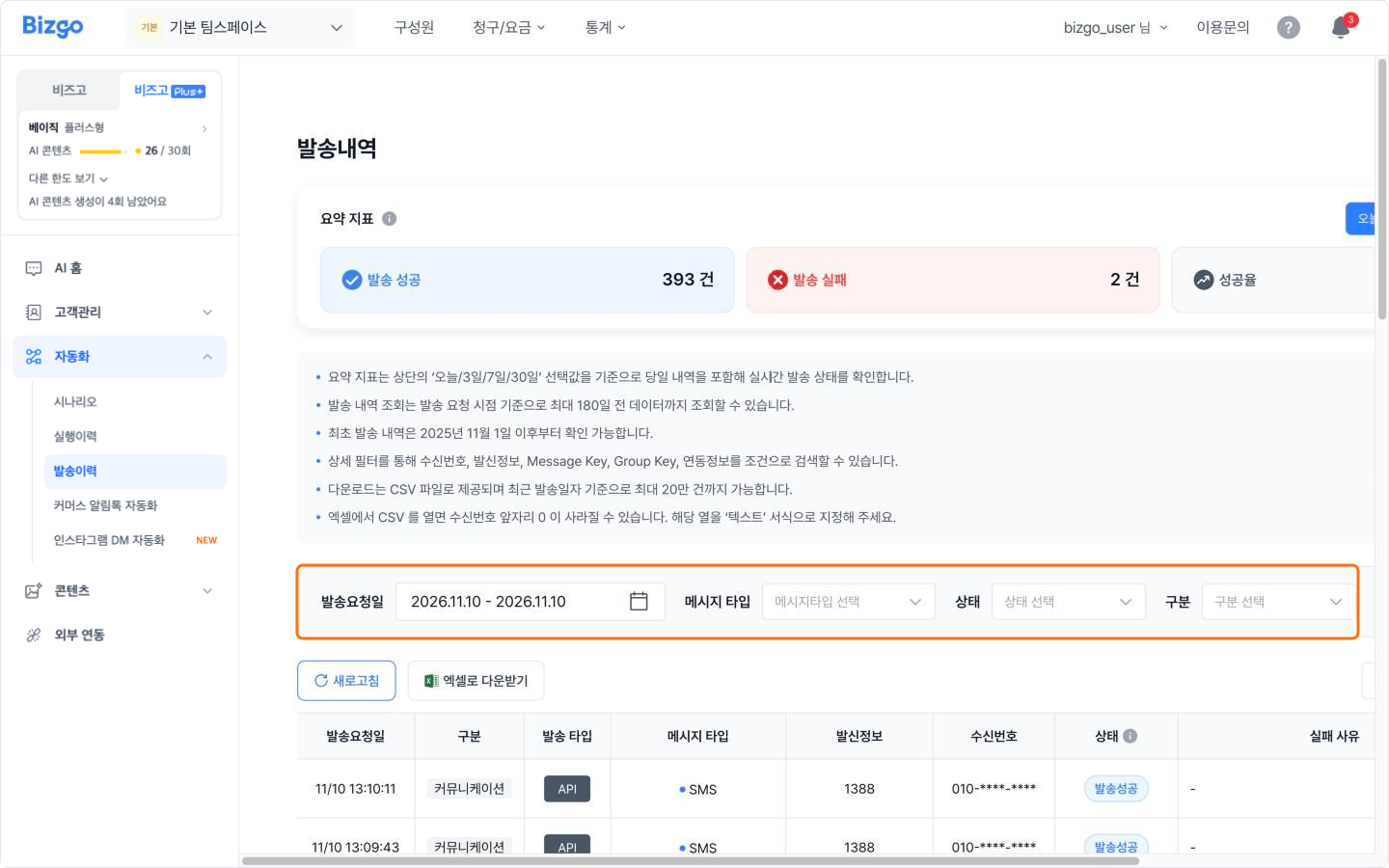
The last 180 days only
CSV downloads go up to 200,000 rows.
The send history covers every send from the team, not only the automated ones.
Instagram auto-DM results
Expand the row in the Instagram DM automation list and click Detailed history. Commerce Alimtalk results appear in the send history.
Next
- Editing a scenario → Automate store Alimtalk · Auto-reply to Instagram DMs
- All send results → Check web and system send results