
Register a Kakao channel
Alimtalk and Brand Message need a Kakao business channel. Create the channel in the Kakao Business admin center first, then follow the steps below.
Step 1: Create a KakaoTalk channel
Sign in to Kakao Business Manager, click Channel (채널) in the top menu, then click Create new channel (새 채널 만들기).
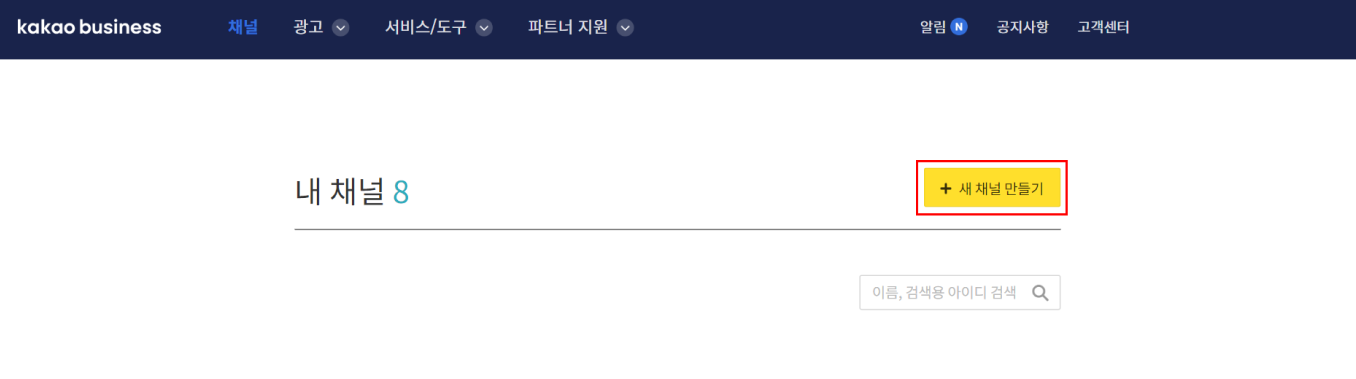
Next, enter the information required to create the channel. Enter the channel name shown on the channel home and the search ID used when searching for the channel in KakaoTalk. That search ID is your sender profile. Once you have also set your company's category, the channel is created.
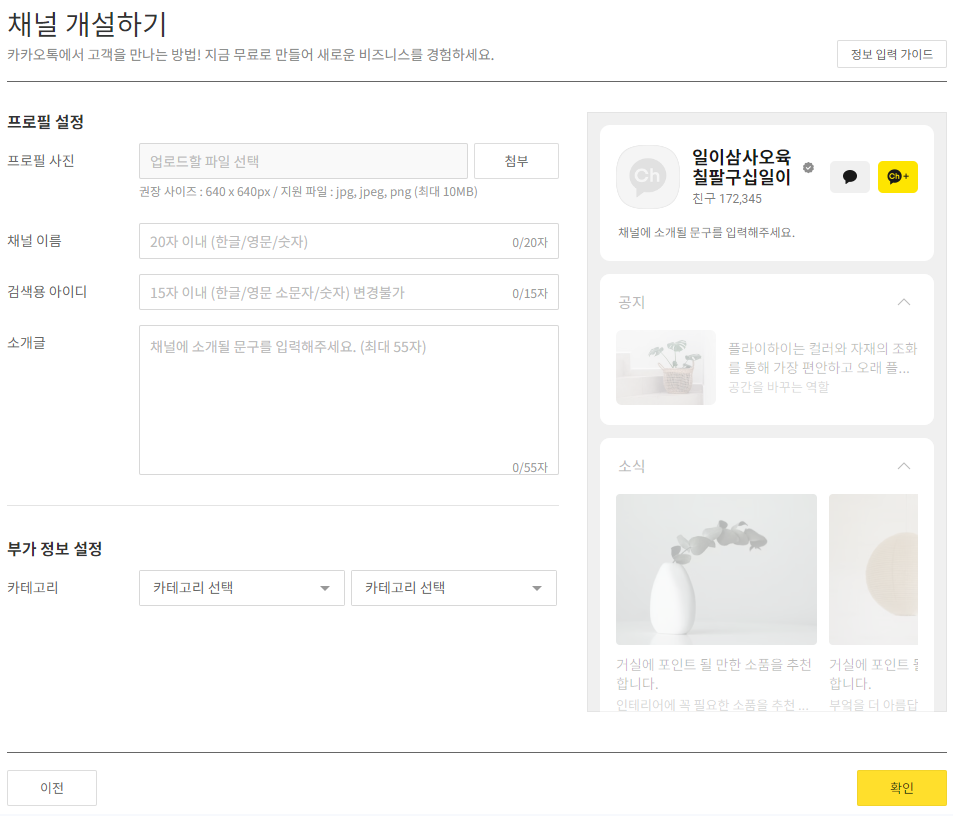
Step 2: Switch to a business channel
Go to the channel admin center for the channel you created, click Manage (관리) > Apply for business channel (비즈니스 채널 신청) in the left menu, then click Apply (신청) at the top. Enter your business information, attach the requested documents, and complete the channel application.
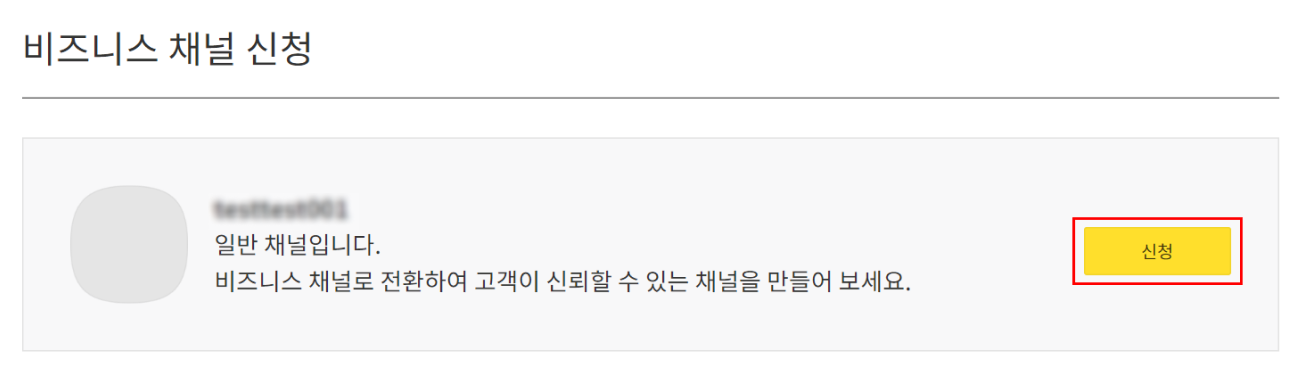
Step 3: Register the sender profile
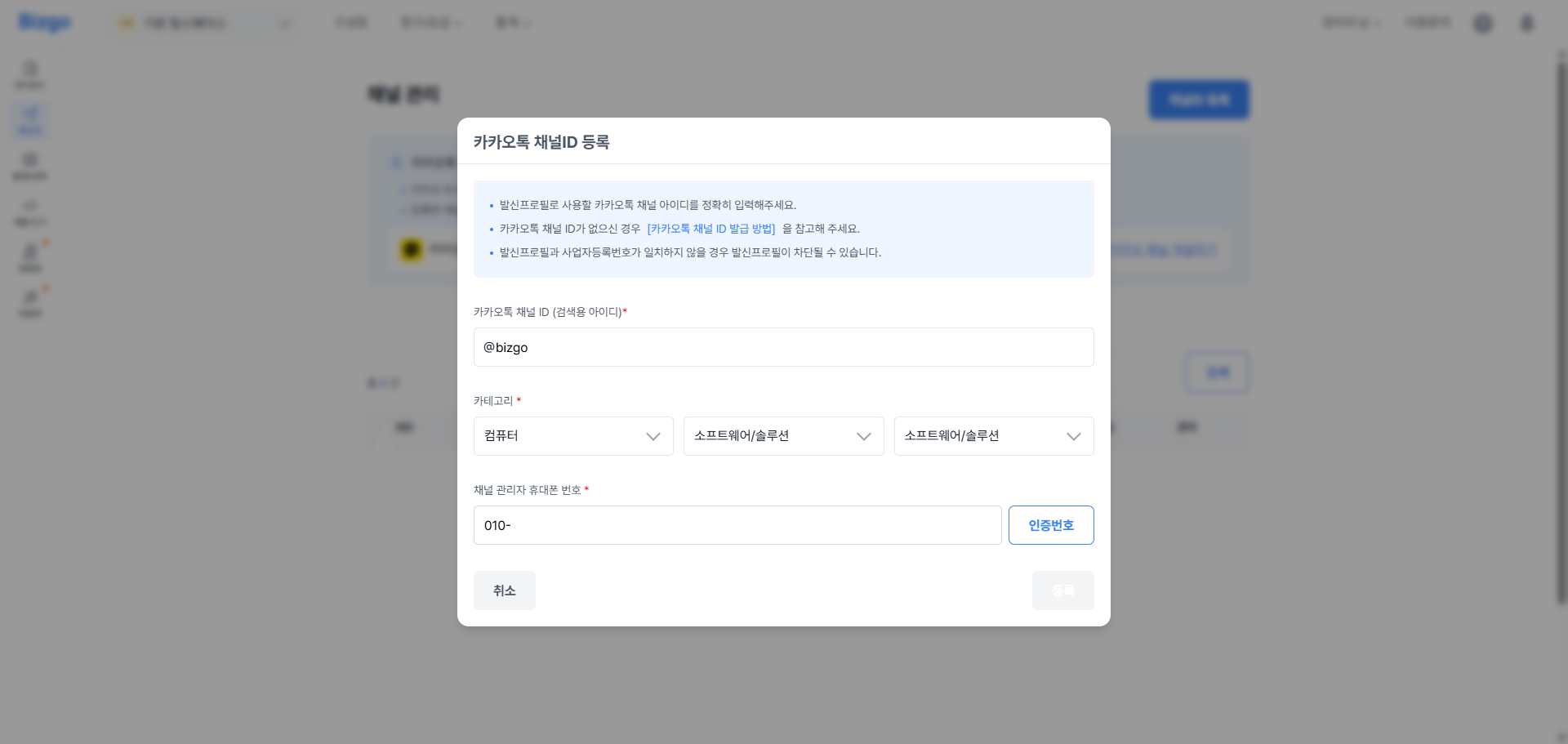
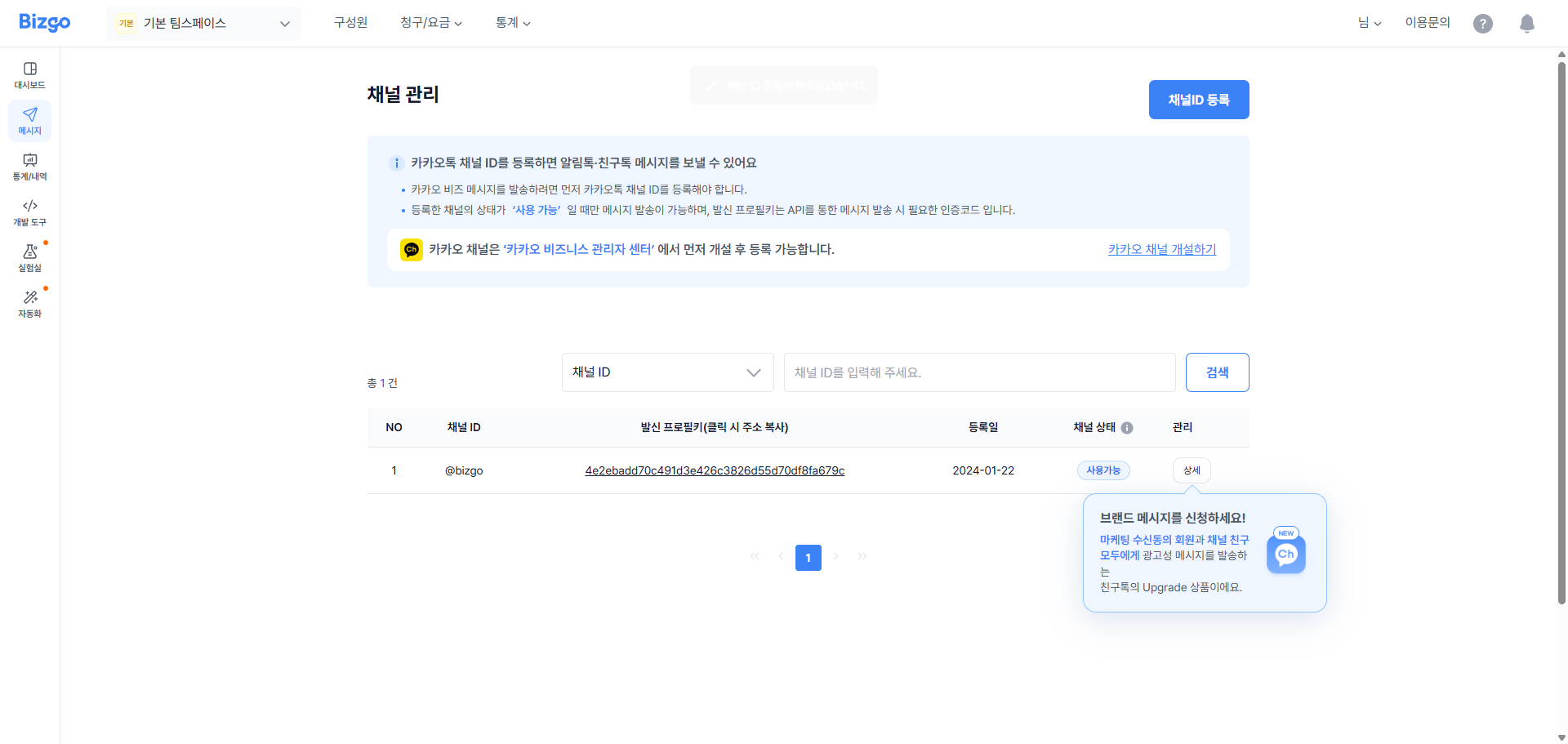
Once the channel is approved as a business channel, you need to register the channel ID with Bizgo. Open the team space where you want to register the channel ID, go to Sender info (발신정보) > KakaoTalk channel management (카카오 채널 관리), then click the Register channel ID (채널 ID 등록) button.
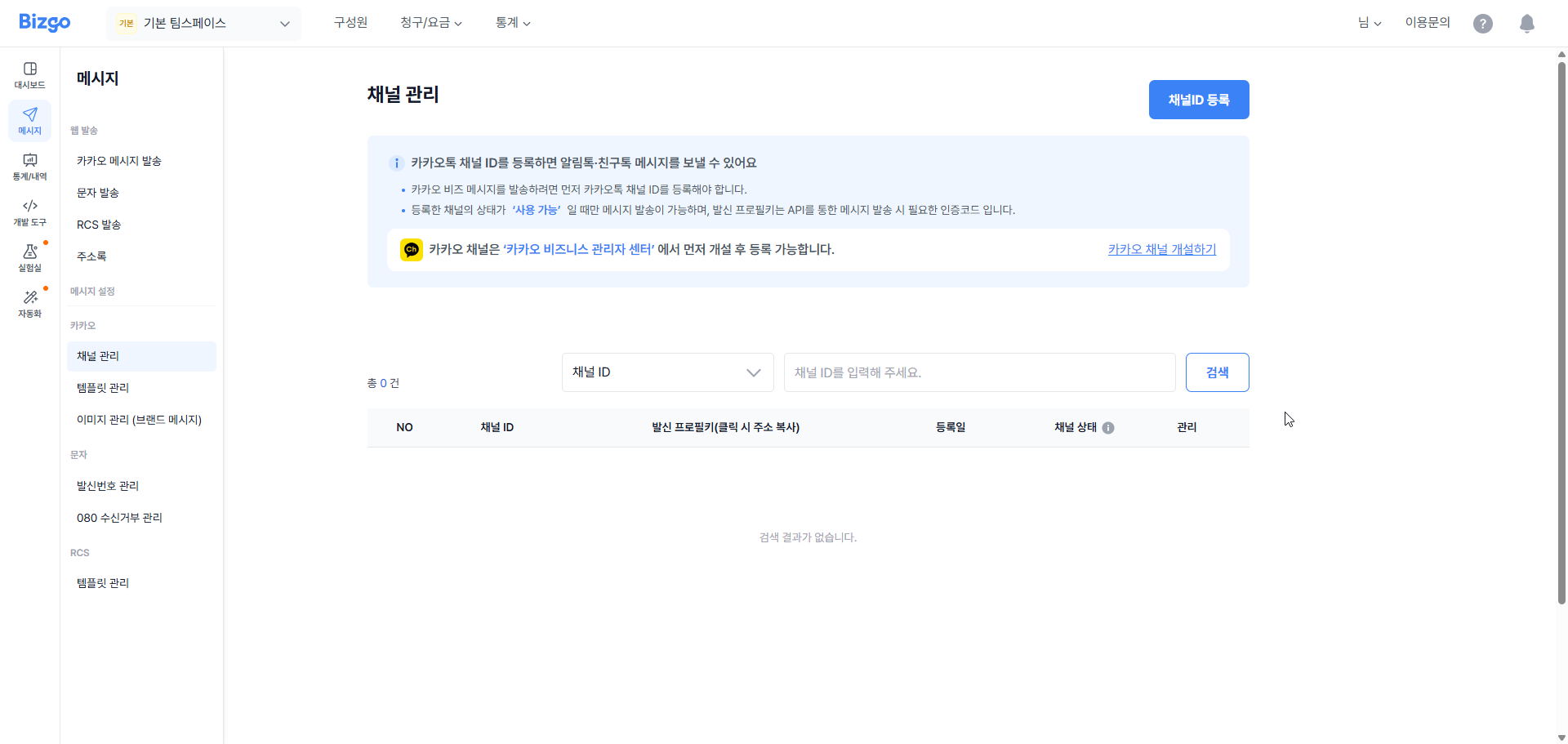
Enter the KakaoTalk channel ID and the category information registered on the channel. Then complete verification using the mobile phone number of the person registered as the channel admin. When verification succeeds, the channel ID you entered is registered with Bizgo.
Extra steps for Alimtalk
To send Alimtalk you also need to register templates in advance and get them approved.
How long approval takes
Linking a Kakao channel takes about three to five business days. Alimtalk also needs its templates reviewed, separately from the channel.
Next
- Creating templates → Create an Alimtalk template · Create a Brand Message template
- Try sending one → Send KakaoTalk