
Get started with Counsel Talk
Counsel Talk connects 1:1 conversations with customers over KakaoTalk. Apply for it under Bizgo > Messages > Kakao > Counsel Talk.
Looking for the integration flow
This page covers turning Counsel Talk on in the console. How messages travel and what the payloads look like is documented separately. → Counsel Talk integration flow · Kakao Counsel Talk API
1. Apply for Counsel Talk
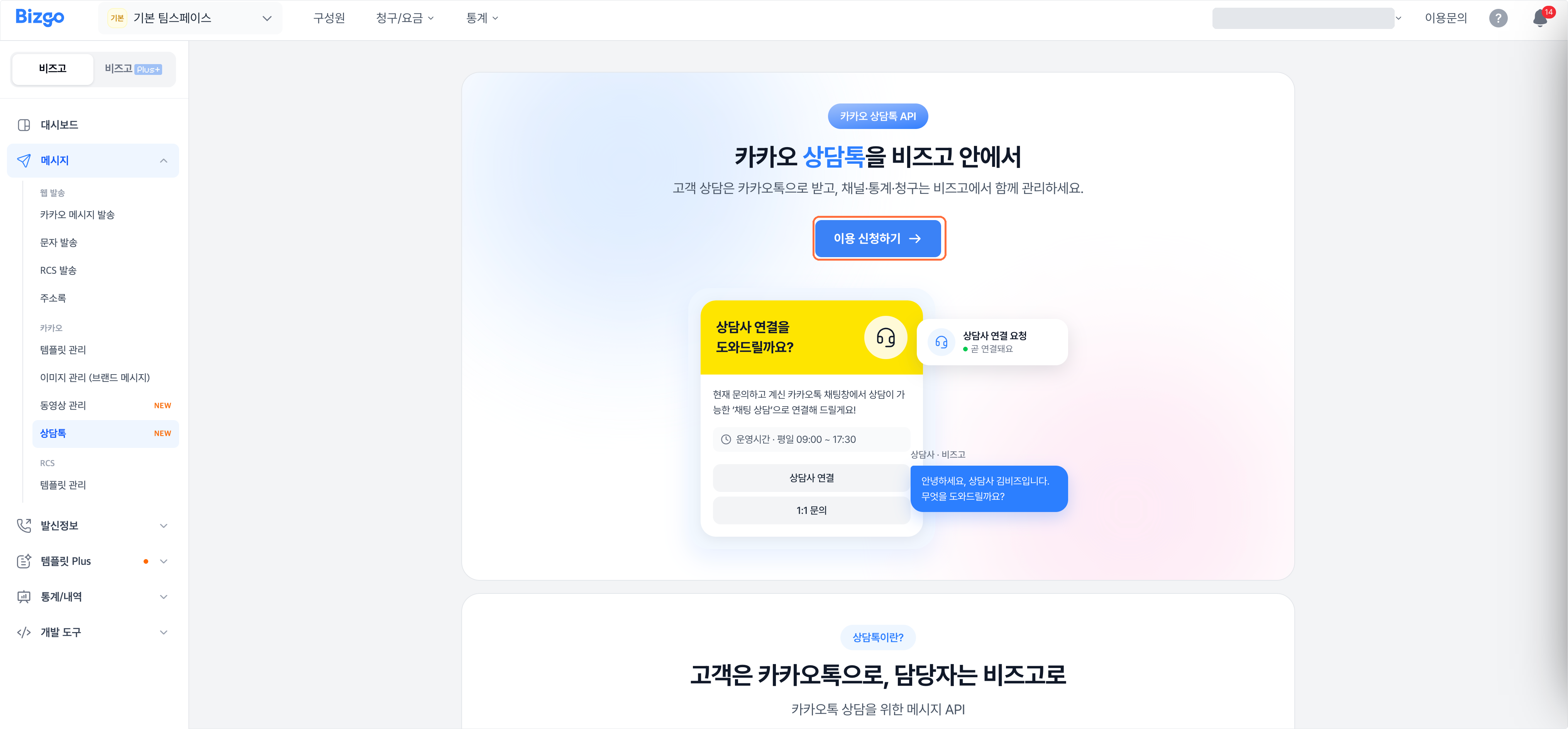
On the Counsel Talk introduction screen, click Apply.
2. Choose a plan
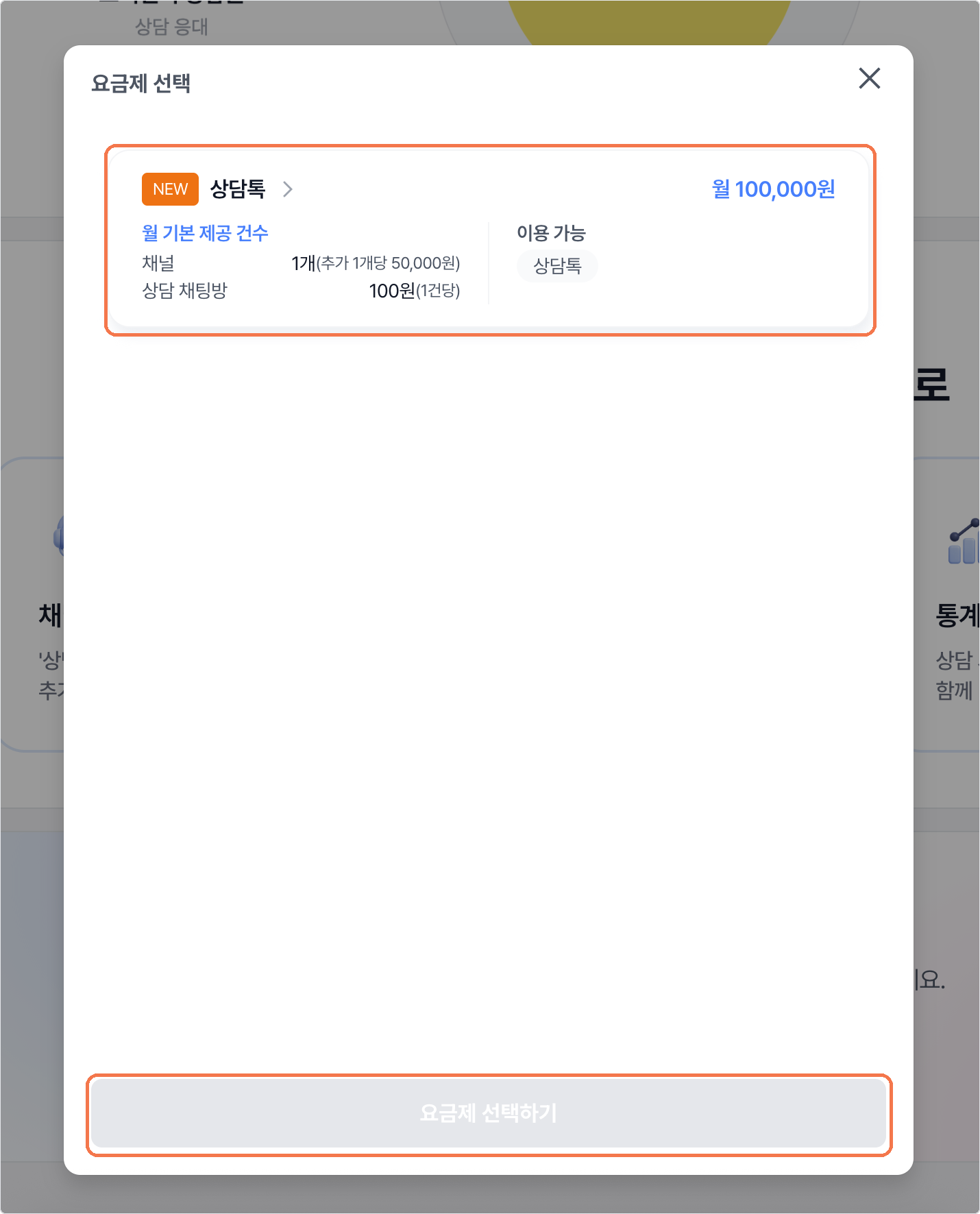
In the plan dialog, review the monthly fee and what the Counsel Talk plan includes, then select it. Click Select plan to continue.
What the plan covers, and what costs extra
Check the included volume and the extra usage rates on the application screen. A Counsel Talk plan can be held alongside a communication plan. → Check your plan
After applying
Once the application goes through, the Counsel Talk screen shows Counsel Talk plan active and the Channel management, Counselling hours, and Automated messages tabs become available. Register a channel next, then set your hours and messages.